Part 3: Creating Clusters with AWS Management Console and CLI
Last Updated: September 11, 2026
Complete the Part 1 prerequisites. The examples create billable AWS resources and are educational workflows; they have not been provisioned or certified for production in this audit.
Creating a Cluster Using AWS Management Console
This section creates a conventional EC2 managed-node-group cluster. Use Custom configuration and turn Use EKS Auto Mode off. The quick Auto Mode workflow has different roles and infrastructure management.
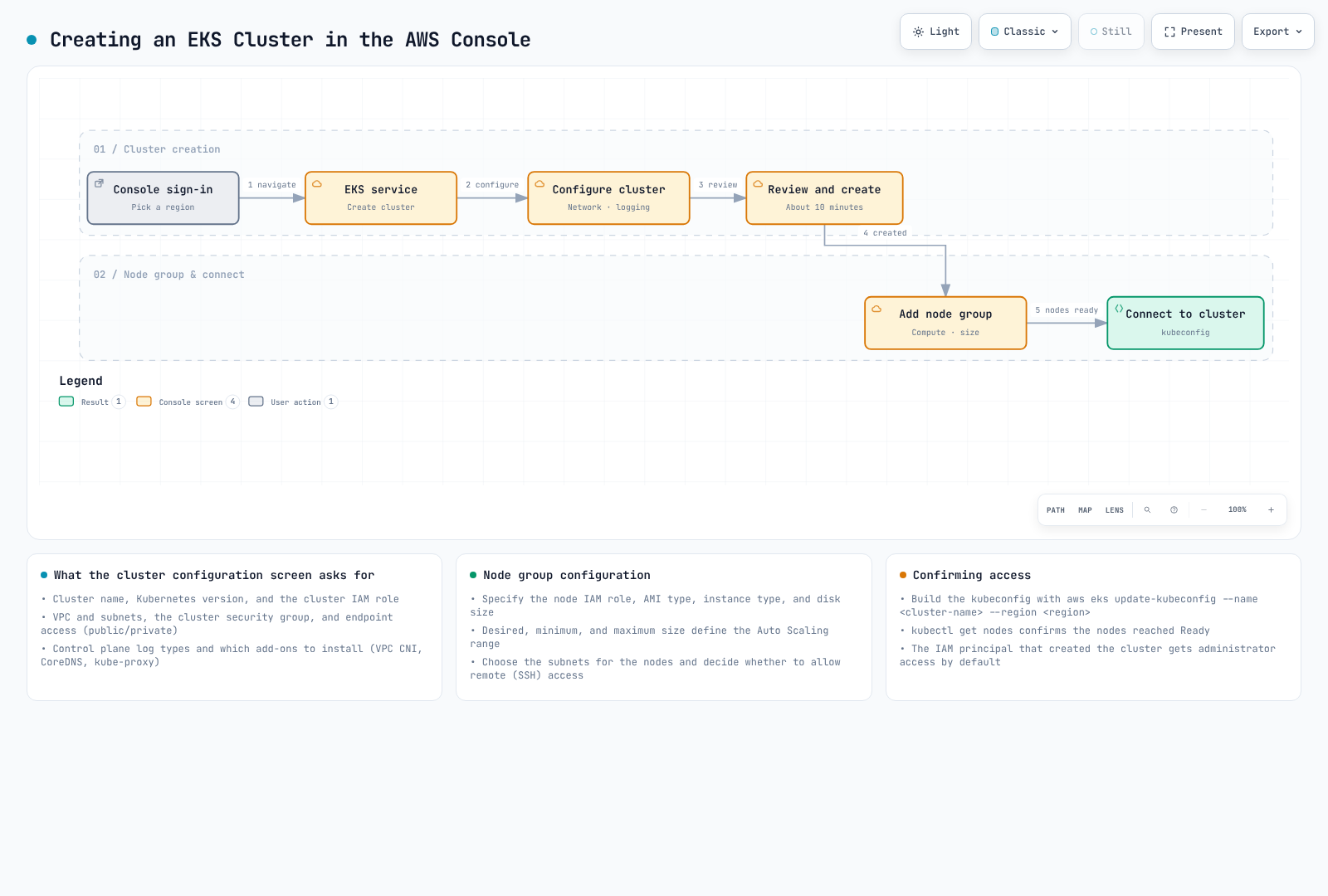
The diagram is an illustrative workflow; creation time varies. Explicitly review creator access and node readiness instead of assuming the default settings meet your requirements.
Cluster Configuration
Open the EKS console in the intended account/Region, choose Add cluster → Create, and select the custom configuration above.
- Choose a unique cluster name and a currently supported EKS version. The CLI example below uses 1.36; upstream Kubernetes releases are not the EKS support catalog.
- Select a reviewed cluster IAM role with
eks.amazonaws.comtrust andAmazonEKSClusterPolicy. The provisioning identity also needs appropriate EKS/IAM permissions, including scopediam:PassRoleand service-linked-role creation when needed. - Review standard/extended support policy, tags and optional features. EKS 1.28+ already envelope-encrypts Kubernetes API data with an AWS owned key; a customer-managed KMS key is optional.
- Select API access-entry authentication. For this lab, disallow automatic creator-admin access and plan an explicit access entry for the existing operator role. Creating kubeconfig later does not grant authorization.
Specify Networking
Select an existing VPC meeting EKS requirements, or prepare one first using a complete network design. Choose at least two suitable subnets in different AZs. Each cluster subnet needs at least six available IP addresses; AWS recommends at least sixteen, and node/Pod/update capacity needs additional planning.
Review VPC DNS, routing, IP-family/service-CIDR overlap and node access to required AWS services/registries. Use private node subnets with suitable NAT or VPC endpoints. The API endpoint choices are:
- Public: public routing, with
publicAccessCidrsrestricting allowed client source ranges. - Private: access through the VPC or connected networks with the required routes, DNS, security groups and IAM/Kubernetes authorization.
- Public and Private: both paths; restrict the public CIDRs and verify the private path.
EKS creates its cluster security group. Additional groups are optional and attach to cluster interfaces; they do not automatically attach to every node group. The public API endpoint is not controlled by a blanket TCP 443 rule on this group.
Configure Logging
On Configure observability, select required control-plane log types: api, audit, authenticator, controllerManager and scheduler. Review optional metrics features separately. CloudWatch ingestion/storage/query charges apply, and log delivery is best effort.
Select Add-ons
For this conventional EC2 cluster, retain compatible VPC CNI, CoreDNS and kube-proxy unless you have a reviewed replacement. Select compatible versions on Configure selected add-ons settings and configure the required add-on IAM identities. Optional controllers/storage drivers need their own installation and permissions.
Review and Create
Review the chosen roles, access mode, network and add-on settings, then create the cluster and wait for ACTIVE. Configure the operator access entry before expecting kubectl access.
Add Node Group
Add a managed node group from the cluster's Compute section:
- Choose an unused group name and a reviewed EC2 node IAM role.
- Select AL2023 x86_64, a compatible instance type and disk/scaling values suitable for the workload. The CLI's
m5.large, 80 GiB and 1–3 bounds are examples, not measured sizing recommendations. - Choose the actual private subnets. Leave SSH access disabled unless a separately reviewed access path is required.
- Create the group and wait for ACTIVE and healthy Ready nodes. Minimum/maximum bounds do not install a workload-driven node autoscaler.
The node role needs worker and image-pull permissions. Prefer a separate CNI workload role; the CLI below explicitly documents a simpler IPv4 node-role fallback.
Creating a Cluster Using AWS CLI
The following conventional IPv4 example uses EKS 1.36 and AL2023 managed nodes. Choose either this workflow or the console workflow. Run the CLI steps in one Bash session, use unused lab names, and keep the private response files for ownership/cleanup checks.
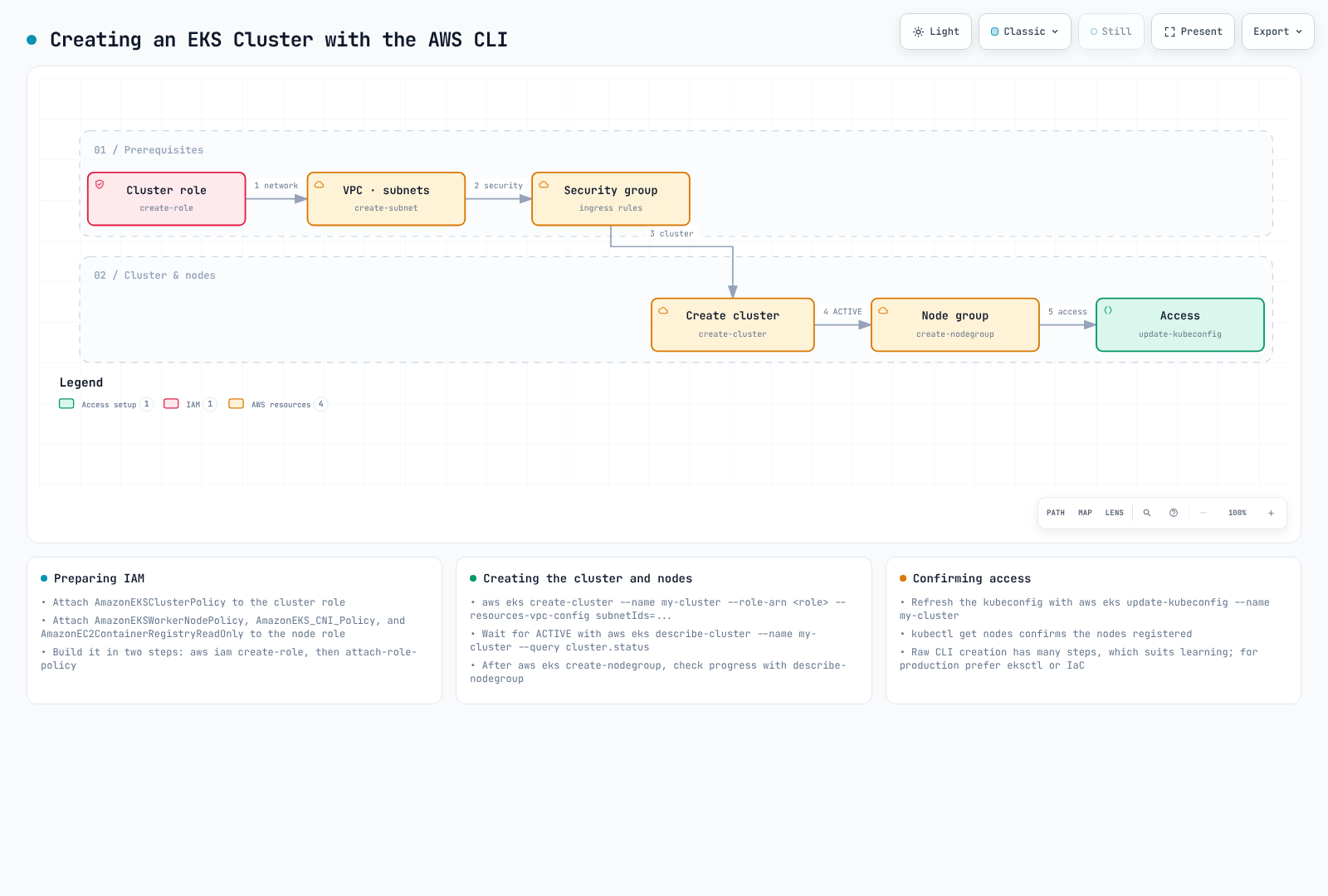
The diagram shows general steps. EKS creates the cluster security group automatically; use the current role policies and explicit access settings below. This audit did not execute the AWS operations.
: "${EKS_CLUSTER_NAME:?Choose an unused training cluster name}"
: "${EKS_REGION:?For example us-west-2}"
: "${OPERATOR_ROLE_ARN:?Existing operator IAM role that this login may assume}"
: "${APPROVED_API_CIDR:?Actual approved administration egress CIDR}"
EKS_CREATE_DIR=$(mktemp -d /tmp/eks-console-cli.XXXXXX)
: "${EKS_CREATE_DIR:?}"
EKS_KUBECONFIG="$EKS_CREATE_DIR/kubeconfig"
aws sts get-caller-identity
1. Create Cluster IAM Role
These commands create a new role and stop if creation fails. To reuse an already reviewed role, set EKS_CLUSTER_ROLE_ARN and skip the creation/attachment block instead of changing a coincidentally named existing role.
cat > "${EKS_CREATE_DIR:?}/cluster-trust.json" << 'EOF'
{
  "Version":"2012-10-17",
  "Statement":[{
    "Effect":"Allow",
    "Principal":{"Service":"eks.amazonaws.com"},
    "Action":"sts:AssumeRole"
  }]
}
EOF
aws iam create-role --role-name "${NEW_CLUSTER_ROLE_NAME:?Unused role name}" \
  --assume-role-policy-document "file://$EKS_CREATE_DIR/cluster-trust.json" \
  --query Role --output json > "$EKS_CREATE_DIR/created-cluster-role.json" || exit 1
EKS_CLUSTER_ROLE_ARN=$(jq -er '.Arn' "$EKS_CREATE_DIR/created-cluster-role.json") || exit 1
aws iam attach-role-policy --role-name "$NEW_CLUSTER_ROLE_NAME" \
  --policy-arn arn:aws:iam::aws:policy/AmazonEKSClusterPolicy || exit 1
2. Create VPC and Subnets
Use an existing reviewed VPC or optionally create a complete example network with the official template below. The template creates two public/two private subnets across two AZs, an internet gateway and two NAT gateways/EIPs. Review CIDR overlap, routes and charges first. The date in its URL is not a Kubernetes version.
# Optional new-network path; review the entire template and its CIDR/NAT costs first.
aws cloudformation create-stack --region "${EKS_REGION:?}" \
  --stack-name "${NEW_VPC_STACK_NAME:?Unused stack name}" \
  --template-url https://s3.us-west-2.amazonaws.com/amazon-eks/cloudformation/2020-10-29/amazon-eks-vpc-private-subnets.yaml \
  > "${EKS_CREATE_DIR:?}/vpc-stack.json" || exit 1
aws cloudformation wait stack-create-complete --region "$EKS_REGION" \
  --stack-name "$NEW_VPC_STACK_NAME" || exit 1
aws cloudformation describe-stacks --region "$EKS_REGION" \
  --stack-name "$NEW_VPC_STACK_NAME" --query 'Stacks[0].Outputs' --output table
The stack's SubnetIds output includes all four subnets. Identify the private pair from their route tables and tags before setting EKS_PRIVATE_SUBNET_A/B. A subnet without an explicit route-table association uses the VPC's main route table; it still has routing.
The checks below validate basic AZ/VPC/IP/DNS prerequisites. Separately verify effective routes, security controls, registry/S3 access and any required VPC endpoints. Creating only a VPC and two subnets does not supply a working node egress path.
# Set these IDs after identifying the actual private subnets and their routes.
aws ec2 describe-subnets --region "${EKS_REGION:?}" \
  --subnet-ids "${EKS_PRIVATE_SUBNET_A:?}" "${EKS_PRIVATE_SUBNET_B:?}" \
  --query Subnets --output json > "${EKS_CREATE_DIR:?}/subnets.json" || exit 1
jq -e 'length == 2 and
  (map(.VpcId) | unique | length) == 1 and
  (map(.AvailabilityZone) | unique | length) == 2 and
  all(.[]; .AvailableIpAddressCount >= 6)' \
  "$EKS_CREATE_DIR/subnets.json" >/dev/null || exit 1
EKS_VPC_ID=$(jq -er '.[0].VpcId' "$EKS_CREATE_DIR/subnets.json") || exit 1
aws ec2 describe-vpc-attribute --region "$EKS_REGION" --vpc-id "$EKS_VPC_ID" \
  --attribute enableDnsSupport --output json > "$EKS_CREATE_DIR/dns-support.json" || exit 1
aws ec2 describe-vpc-attribute --region "$EKS_REGION" --vpc-id "$EKS_VPC_ID" \
  --attribute enableDnsHostnames --output json > "$EKS_CREATE_DIR/dns-hostnames.json" || exit 1
jq -e '.EnableDnsSupport.Value == true' "$EKS_CREATE_DIR/dns-support.json" >/dev/null || exit 1
jq -e '.EnableDnsHostnames.Value == true' "$EKS_CREATE_DIR/dns-hostnames.json" >/dev/null || exit 1
3. Create Cluster Security Group
EKS automatically creates its cluster security group during cluster creation. This example does not require a separate group opened to 0.0.0.0/0. Public API access is restricted with publicAccessCidrs; cluster security-group rules govern the private path and node communication.
If additional groups are needed, review their rules and add their IDs to the configuration deliberately. Build the cluster network request as JSON:
# EKS creates the cluster security group; public API restrictions use this CIDR list.
jq -n --arg a "${EKS_PRIVATE_SUBNET_A:?}" --arg b "${EKS_PRIVATE_SUBNET_B:?}" \
  --arg cidr "${APPROVED_API_CIDR:?}" '{
    subnetIds:[$a,$b],
    endpointPublicAccess:true,
    endpointPrivateAccess:true,
    publicAccessCidrs:[$cidr]
  }' > "${EKS_CREATE_DIR:?}/vpc-config.json" || exit 1
4. Create EKS Cluster
Use --kubernetes-version for aws eks create-cluster; --version displays the AWS CLI version. The API JSON field remains version. This example disables automatic creator-admin access, enables the five control-plane log types and bootstraps the conventional core add-ons. CLI bootstrap add-ons are self-managed; adopting them as EKS-managed add-ons requires a separate compatible-version/configuration workflow.
aws eks describe-cluster-versions --region "${EKS_REGION:?}" --output table
aws eks create-cluster --name "${EKS_CLUSTER_NAME:?}" --region "$EKS_REGION" \
  --kubernetes-version 1.36 --role-arn "${EKS_CLUSTER_ROLE_ARN:?}" \
  --resources-vpc-config "file://${EKS_CREATE_DIR:?}/vpc-config.json" \
  --access-config authenticationMode=API,bootstrapClusterCreatorAdminPermissions=false \
  --bootstrap-self-managed-addons \
  --logging '{"clusterLogging":[{"types":["api","audit","authenticator","controllerManager","scheduler"],"enabled":true}]}' \
  --query cluster --output json > "$EKS_CREATE_DIR/created-cluster.json" || exit 1
aws eks wait cluster-active --name "$EKS_CLUSTER_NAME" --region "$EKS_REGION" || exit 1
aws eks describe-cluster --name "$EKS_CLUSTER_NAME" --region "$EKS_REGION" \
  --query 'cluster.{arn:arn,status:status,version:version,vpc:resourcesVpcConfig}'
A waiter failure does not prove all resources were rolled back. Inspect cluster state and recorded responses before proceeding. Logging incurs CloudWatch costs.
5. Create Node IAM Role
Create a new EC2-trusted role. AmazonEC2ContainerRegistryPullOnly supplies image-pull permissions. For this simple IPv4 lab, CNI permissions are placed on the node role so the bootstrapped VPC CNI can function. Prefer a dedicated CNI IRSA/Pod Identity role where supported and remove the fallback only after that configuration works. Other application/controller AWS permissions do not belong on every node.
cat > "${EKS_CREATE_DIR:?}/node-trust.json" << 'EOF'
{
  "Version":"2012-10-17",
  "Statement":[{
    "Effect":"Allow",
    "Principal":{"Service":"ec2.amazonaws.com"},
    "Action":"sts:AssumeRole"
  }]
}
EOF
aws iam create-role --role-name "${NEW_NODE_ROLE_NAME:?Unused role name}" \
  --assume-role-policy-document "file://$EKS_CREATE_DIR/node-trust.json" \
  --query Role --output json > "$EKS_CREATE_DIR/created-node-role.json" || exit 1
EKS_NODE_ROLE_ARN=$(jq -er '.Arn' "$EKS_CREATE_DIR/created-node-role.json") || exit 1
aws iam attach-role-policy --role-name "$NEW_NODE_ROLE_NAME" \
  --policy-arn arn:aws:iam::aws:policy/AmazonEKSWorkerNodePolicy || exit 1
aws iam attach-role-policy --role-name "$NEW_NODE_ROLE_NAME" \
  --policy-arn arn:aws:iam::aws:policy/AmazonEC2ContainerRegistryPullOnly || exit 1
# Simple IPv4 lab fallback only. Prefer a dedicated CNI workload role in production.
aws iam attach-role-policy --role-name "$NEW_NODE_ROLE_NAME" \
  --policy-arn arn:aws:iam::aws:policy/AmazonEKS_CNI_Policy || exit 1
6. Create Node Group
Create the managed group in the reviewed private subnets. EKS supplies the selected AL2023 AMI's node initialization and the managed node access entry. The example omits SSH access and custom launch-template overrides.
aws eks create-nodegroup --cluster-name "${EKS_CLUSTER_NAME:?}" --region "${EKS_REGION:?}" \
  --nodegroup-name "${NEW_NODEGROUP_NAME:?}" --node-role "${EKS_NODE_ROLE_ARN:?}" \
  --subnets "${EKS_PRIVATE_SUBNET_A:?}" "${EKS_PRIVATE_SUBNET_B:?}" \
  --ami-type AL2023_x86_64_STANDARD --instance-types m5.large --capacity-type ON_DEMAND \
  --disk-size 80 --scaling-config minSize=1,maxSize=3,desiredSize=2 \
  --query nodegroup --output json > "${EKS_CREATE_DIR:?}/created-nodegroup.json" || exit 1
aws eks wait nodegroup-active --cluster-name "$EKS_CLUSTER_NAME" --region "$EKS_REGION" \
  --nodegroup-name "$NEW_NODEGROUP_NAME" || exit 1
aws eks describe-nodegroup --cluster-name "$EKS_CLUSTER_NAME" --region "$EKS_REGION" \
  --nodegroup-name "$NEW_NODEGROUP_NAME" \
  --query 'nodegroup.{status:status,health:health,ami:amiType,release:releaseVersion}'
7. Configure kubeconfig
Use an existing operator IAM role that the current login is allowed to assume. The provisioning identity must be allowed to create its EKS access entry and associate the lab access policy. These commands grant Kubernetes administration on this cluster, not account-wide AWS administration.
# The named operator gets cluster-admin only on this training cluster.
aws eks create-access-entry --cluster-name "${EKS_CLUSTER_NAME:?}" --region "${EKS_REGION:?}" \
  --principal-arn "${OPERATOR_ROLE_ARN:?}" --type STANDARD || exit 1
aws eks associate-access-policy --cluster-name "$EKS_CLUSTER_NAME" --region "$EKS_REGION" \
  --principal-arn "$OPERATOR_ROLE_ARN" \
  --policy-arn arn:aws:eks::aws:cluster-access-policy/AmazonEKSClusterAdminPolicy \
  --access-scope type=cluster || exit 1
aws eks update-kubeconfig --name "$EKS_CLUSTER_NAME" --region "$EKS_REGION" \
  --role-arn "$OPERATOR_ROLE_ARN" --kubeconfig "${EKS_KUBECONFIG:?}" \
  --alias "$EKS_CLUSTER_NAME" || exit 1
8. Verify Cluster
Inspect the intended context, node readiness and system Pods:
kubectl --kubeconfig "${EKS_KUBECONFIG:?}" config current-context
kubectl --kubeconfig "$EKS_KUBECONFIG" auth can-i get nodes
kubectl --kubeconfig "$EKS_KUBECONFIG" get nodes -o wide
kubectl --kubeconfig "$EKS_KUBECONFIG" get pods -n kube-system
ACTIVE infrastructure is not proof of application readiness, and get nodes must actually show healthy Ready nodes. Verify workload scheduling, DNS, image pulls and the application's dependencies before production use. No workload performance or availability measurement was performed in this audit.
For cleanup, follow the reviewed lifecycle procedure: remove application cloud dependencies first, then the appropriate node groups/profiles and cluster. Delete only a dedicated lab VPC after its dependencies are gone, and only lab-owned roles. Retain response/ownership files when cleanup fails.
Quiz
To test what you learned in this chapter, try the EKS Cluster Creation - Part 3 Quiz.