Windows in Kubernetes
Upstream Kubernetes versions reviewed: Kubernetes 1.35, 1.36, 1.37 Last Updated: September 11, 2026
Kubernetes was originally designed for Linux containers, but production support for Windows containers was added starting with version 1.14. In this chapter, we will explore how to run Windows workloads in Kubernetes, the architecture, limitations, and Windows support in Amazon EKS.
Table of Contents
- Windows Container Overview
- Kubernetes Windows Support Architecture
- Windows Node Limitations
- Windows Node Setup
- Deploying Windows Containers
- Networking
- Storage
- Monitoring and Logging
- Security
- Windows Support in Amazon EKS
- Best Practices
- Conclusion
Windows Container Overview
Windows containers are containers that run on the Windows operating system, allowing you to containerize and deploy Windows applications.
Windows Container Types
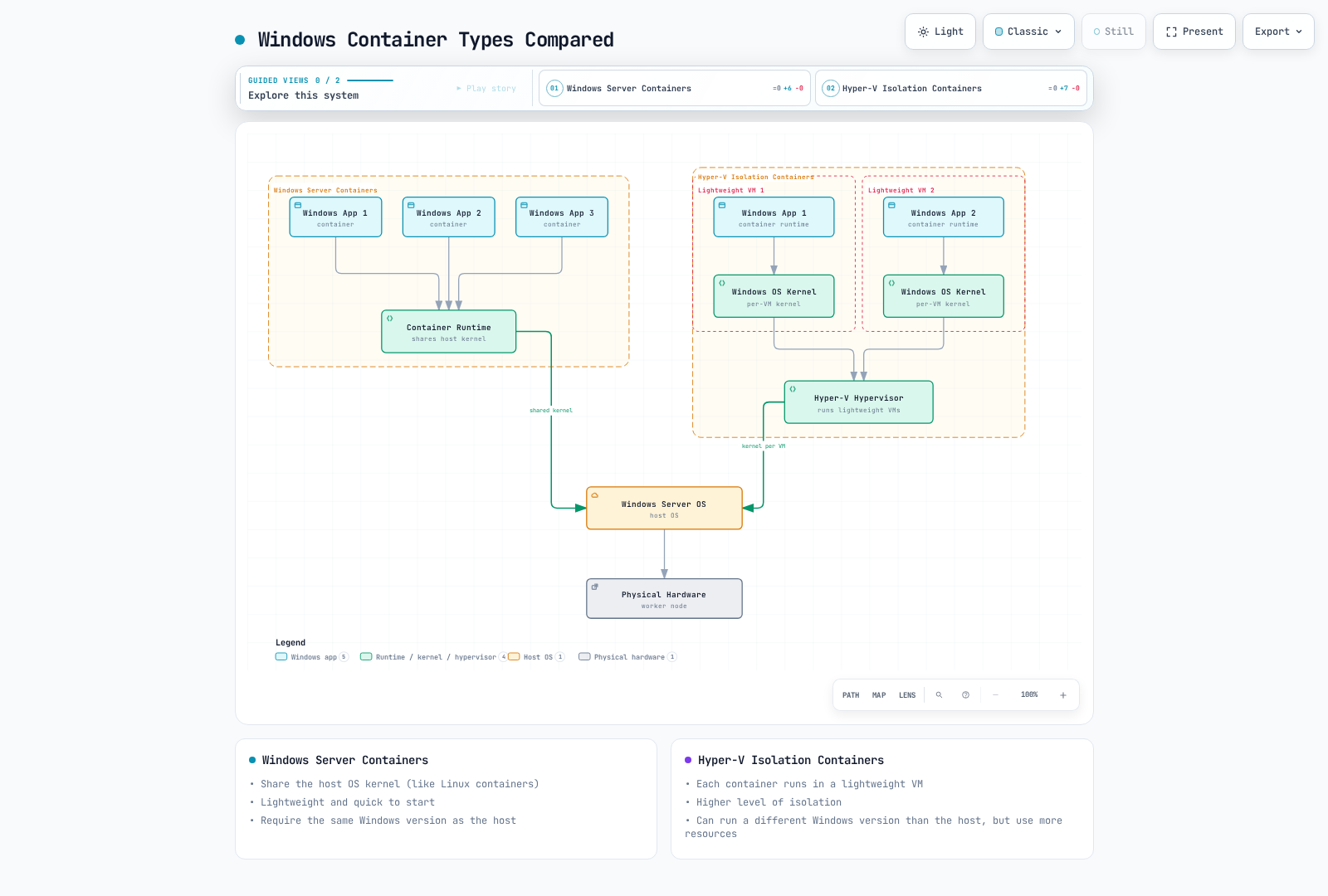
Windows offers two isolation types. Kubernetes supports process isolation only; Hyper-V below is background information, not a Kubernetes deployment option:
Windows Server Containers: Similar to Linux containers, they share the host OS kernel. They are lightweight and start quickly, but require a host/image combination supported by Microsoft.
Hyper-V Isolation Containers: Each container runs in a lightweight VM, providing a higher level of isolation. They can run different Windows versions than the host but use more resources.
The following diagram shows the architectural differences between the two Windows container types:
Windows Container Images
Windows container images are based on base images provided by Microsoft:
- Windows Server Core: A lightweight image that provides a minimal Windows Server environment
- Nano Server: An ultra-lightweight image with a smaller footprint
- Windows: A larger Windows API surface; container images do not provide a full desktop/GUI server
Example Dockerfile:
FROM mcr.microsoft.com/windows/servercore/iis:windowsservercore-ltsc2022
COPY website/ C:/inetpub/wwwroot/
EXPOSE 80
# Inherit the IIS image entrypoint (ServiceMonitor.exe).
Kubernetes Windows Support Architecture
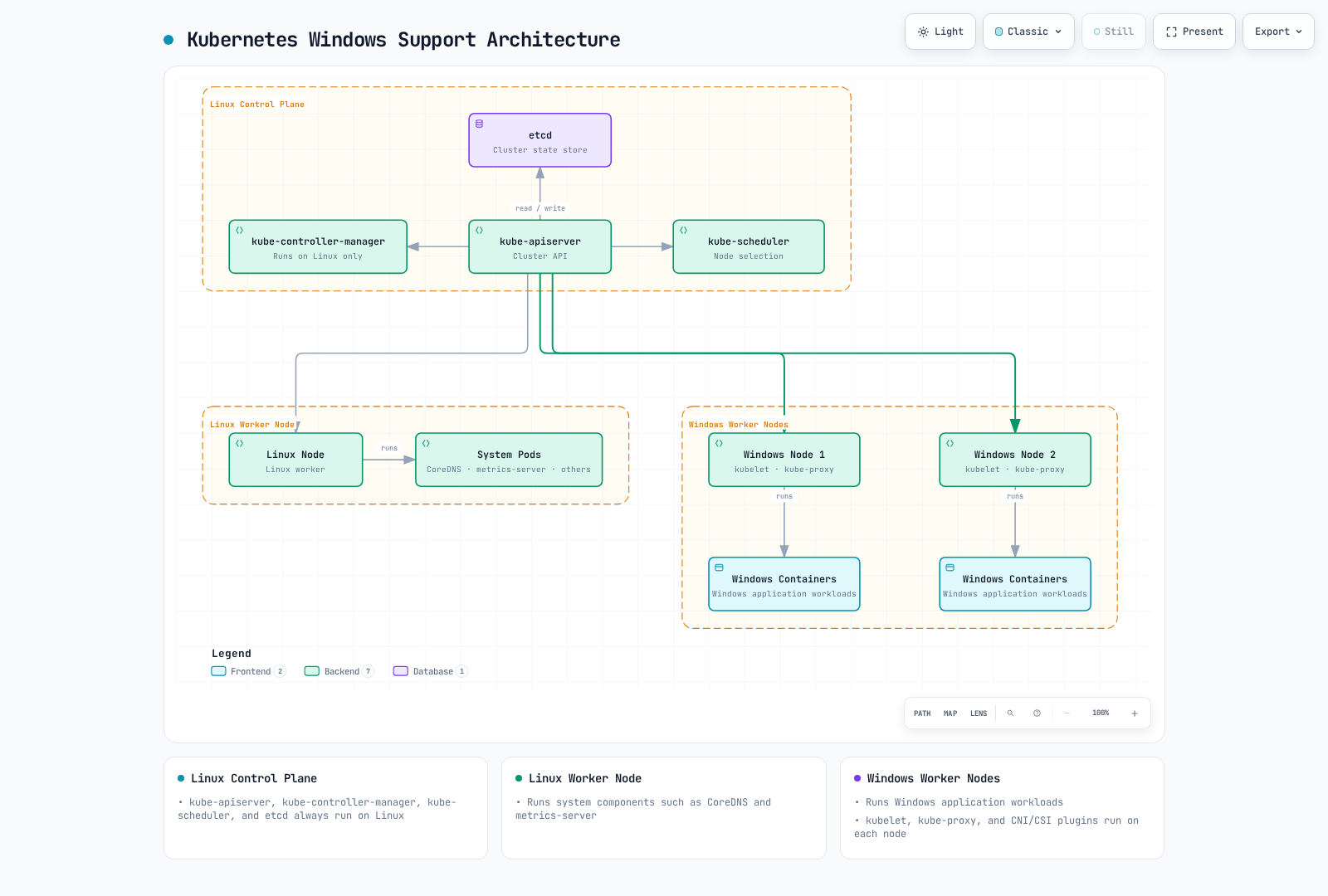
Windows support in Kubernetes is based on a mixed environment. Control plane components always run on Linux, while worker nodes can be either Linux or Windows.
Architecture Overview
The Windows support architecture in Kubernetes is as follows:
- Linux Control Plane: kube-apiserver, kube-controller-manager, kube-scheduler, and etcd always run on Linux.
- Linux Worker Nodes: Run system components (CoreDNS, metrics-server, etc.).
- Windows Worker Nodes: Run Windows application workloads.
Windows Node Components
Kubernetes components running on Windows nodes:
- kubelet: Manages pods and containers on the node
- kube-proxy: Manages network rules
- CNI Plugin: Network configuration
- CSI Plugin: Storage management
Windows Node Limitations
There are several limitations to be aware of when using Windows nodes in Kubernetes.
Feature Limitations
privilegedis unsupported. Node agents can use HostProcess containers with hostProcess and hostNetwork enabled; restrict their host privileges carefully.- Regular Windows Pods cannot use hostNetwork; HostProcess is the exception.
- Pods with
spec.os.name: windowsmust not set Linux-only fields such as runAsUser, fsGroup, seccomp, capabilities, or readOnlyRootFilesystem. - Use OS-specific images and nodeSelector for separate DaemonSets.
- Memory-backed emptyDir, raw block volumeDevices, PIDPressure, and Linux-style OOM eviction are unsupported.
- CPU/memory limits use Windows mechanisms. Windows has no Linux OOM killer; exhausted memory can cause allocation failures or paging and degraded performance.
Networking Limitations
Check the Windows HNS/CNI support matrix for modes such as L2bridge and overlay. Containers in the same Pod share networking and localhost, but not process namespaces or root filesystems. Verify NetworkPolicy, Service and DSR support for the selected OS/CNI/cluster combination.
Operating System Version Compatibility
Kubernetes v1.37 supports Windows Server 2022 and 2025 workers. This chapter uses Windows Server 2022 + ltsc2022 examples. Check both Microsoft’s compatibility matrix and the distribution’s support policy, and apply monthly security updates. Hyper-V isolation cannot bypass Kubernetes compatibility requirements.
Windows Node Setup
Let's explore the process of adding Windows nodes to a Kubernetes cluster.
Prerequisites
Use a supported Kubernetes/Windows combination, a Linux control plane, a Windows-capable CNI, and CRI-compatible containerd. Docker Engine alone does not implement CRI; built-in dockershim was removed in Kubernetes 1.24. For EKS nodes, follow the EKS section below.
Preparing Windows Nodes
Enable the Containers feature in administrator PowerShell and complete any required reboot. The following is for self-managed kubeadm workers. Download hostprocess/Install-Containerd.ps1 and hostprocess/PrepareNode.ps1 from a reviewed commit of official sig-windows-tools, inspect them and verify checksums before execution. Select a supported containerd patch and kubelet version compatible with the cluster. Review installer-created firewall rules and restrict port 10250 to required control-plane sources.
$ErrorActionPreference = "Stop"
$ContainerdVersion = Read-Host "Validated containerd version (without v)"
$KubernetesVersion = Read-Host "Cluster-compatible Kubernetes version (vX.Y.Z)"
if (-not $ContainerdVersion -or -not $KubernetesVersion) { throw "Versions required" }
.\Install-Containerd.ps1 -ContainerDVersion $ContainerdVersion
.\PrepareNode.ps1 -KubernetesVersion $KubernetesVersion
Joining Windows Node Using kubeadm
Generate join token on the Linux control plane:
kubeadm token create --print-join-commandRun join command on the Windows node:
# Run kubeadm join command
kubeadm join <control-plane-host>:<control-plane-port> --token <token> --discovery-token-ca-cert-hash sha256:<hash>
Setting Windows Node Labels
Inspect OS, architecture and build labels published by kubelet. Do not overwrite an OS label to force scheduling. spec.os.name declares the Pod OS but does not replace scheduler selectors; also use nodeSelector.
kubectl get nodes -L kubernetes.io/os,kubernetes.io/arch,node.kubernetes.io/windows-buildDeploying Windows Containers
Let's explore how to deploy Windows containers to Kubernetes.
Using Node Selector
When deploying Windows workloads, use a node selector to ensure they are scheduled to Windows nodes:
apiVersion: apps/v1
kind: Deployment
metadata:
  name: iis-deployment
spec:
  replicas: 2
  selector:
    matchLabels:
      app: iis
  template:
    metadata:
      labels:
        app: iis
    spec:
      os:
        name: windows
      nodeSelector:
        kubernetes.io/os: windows
      containers:
      - name: iis
        image: mcr.microsoft.com/windows/servercore/iis:windowsservercore-ltsc2022
        resources:
          limits:
            cpu: 1
            memory: 800Mi
          requests:
            cpu: .1
            memory: 300Mi
        ports:
        - containerPort: 80
Resource Requests and Limits
Resource requests and limits for Windows containers are handled differently than Linux containers:
- CPU Limits: CPU limits are applied differently on Windows. For example, a CPU limit of 1 means 100% of a single CPU core can be used.
- Memory Limits: Windows containers respect memory limits, but some system processes may cause additional overhead.
Container Customization
Running custom scripts in Windows containers:
apiVersion: v1
kind: Pod
metadata:
  name: windows-custom-script
spec:
  os:
    name: windows
  nodeSelector:
    kubernetes.io/os: windows
  containers:
  - name: windows-container
    image: mcr.microsoft.com/windows/servercore:ltsc2022
    command:
    - powershell.exe
    - -Command
    - |
      while ($true) {
        Write-Host "Hello from Windows container"
        Start-Sleep -Seconds 10
      }
Multi-Container Pods
Windows also supports multi-container pods, but with some limitations:
apiVersion: v1
kind: Pod
metadata:
  name: windows-multi-container
spec:
  os:
    name: windows
  nodeSelector:
    kubernetes.io/os: windows
  containers:
  - name: writer
    image: mcr.microsoft.com/windows/servercore:ltsc2022
    command: [powershell.exe, -Command, 'while ($true) { Add-Content C:\shared-logs\app.log "Log at $(Get-Date)"; Start-Sleep 10 }']
    volumeMounts:
    - name: logs
      mountPath: C:\shared-logs
  - name: logger
    image: mcr.microsoft.com/windows/servercore:ltsc2022
    command: [powershell.exe, -Command, 'while (-not (Test-Path C:\shared-logs\app.log)) { Start-Sleep 2 }; Get-Content C:\shared-logs\app.log -Wait']
    volumeMounts:
    - name: logs
      mountPath: C:\shared-logs
      readOnly: true
  volumes:
  - name: logs
    emptyDir: {}
Networking
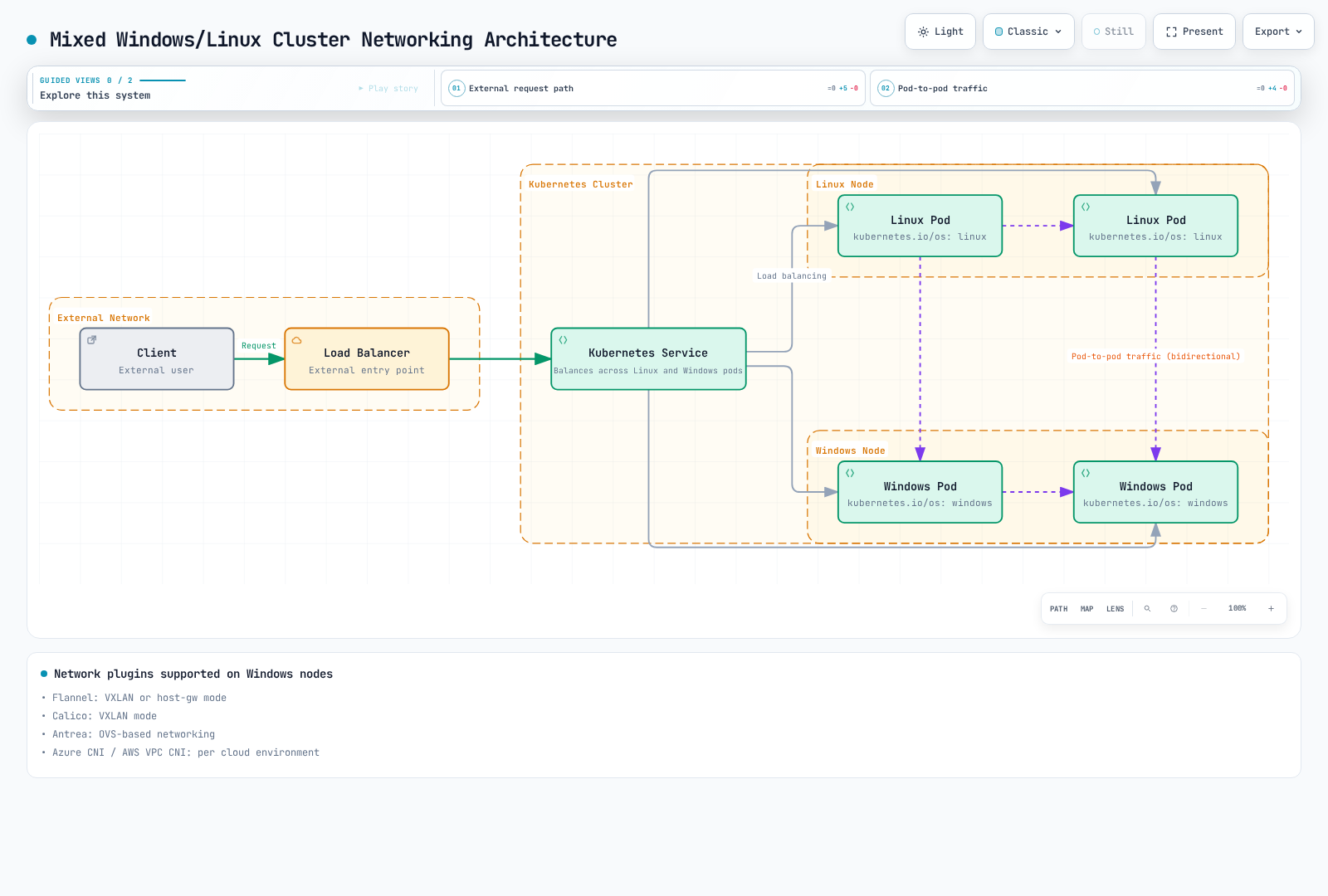
Networking on Windows nodes has different characteristics than Linux nodes.
The following diagram shows the networking architecture of a Kubernetes cluster with mixed Windows and Linux nodes:
Supported Network Plugins
Network plugins supported on Windows nodes:
- Flannel: VXLAN or host-gw mode
- Calico: VXLAN mode
- Antrea: OVS-based networking
- Azure CNI: Used in Azure environments
- AWS VPC CNI: Used in AWS environments
Flannel Setup Example
Copying a Linux Flannel manifest into a Windows DaemonSet does not work. Windows binaries, HNS, CNI paths, RBAC and HostProcess configuration are required. Use the distribution’s Windows installation procedure and coordinate Linux networking with Windows win-overlay/win-bridge configuration. Check Flannel Windows VXLAN requirements for VNI 4096/UDP 4789. Adding hostNetwork to a regular application Pod is not an installation method.
Exposing Services
How to expose services on Windows nodes:
apiVersion: v1
kind: Service
metadata:
  name: iis-service
spec:
  selector:
    app: iis
  ports:
  - port: 80
    targetPort: 80
  type: LoadBalancer
Network Policies
To use network policies on Windows nodes, you need a CNI plugin that supports network policies (e.g., Calico):
apiVersion: networking.k8s.io/v1
kind: NetworkPolicy
metadata:
  name: allow-frontend-to-backend
  namespace: default
spec:
  podSelector:
    matchLabels:
      app: backend
      os: windows
  ingress:
  - from:
    - podSelector:
        matchLabels:
          app: frontend
    ports:
    - protocol: TCP
      port: 80
Storage
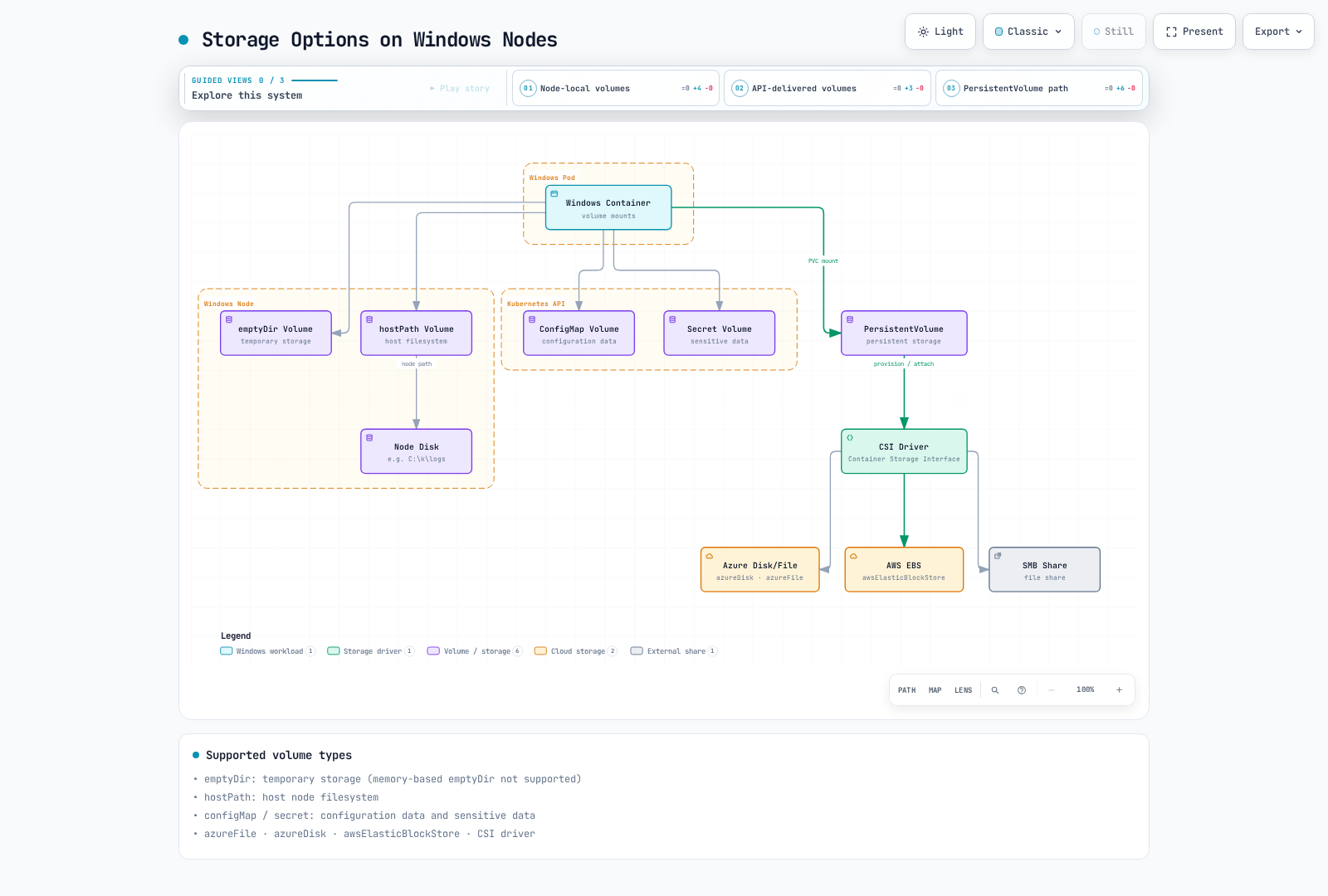
Let's explore storage options available on Windows nodes.
The following diagram shows various storage options available on Windows nodes:
Supported Volume Types
Volume types supported on Windows nodes:
- emptyDir: Temporary storage (memory-based emptyDir not supported)
- hostPath: Host node filesystem
- configMap: Configuration data
- secret: Sensitive data
- CSI/PVC: Windows-compatible Azure Files, Azure Disk, EBS or SMB CSI drivers with filesystem volumes; check each driver’s OS and filesystem support.
emptyDir Volume Example
apiVersion: v1
kind: Pod
metadata:
  name: windows-emptydir
spec:
  os:
    name: windows
  nodeSelector:
    kubernetes.io/os: windows
  containers:
  - name: windows-container
    image: mcr.microsoft.com/windows/servercore:ltsc2022
    volumeMounts:
    - name: temp-volume
      mountPath: C:\temp
    command:
    - powershell.exe
    - -Command
    - |
      Set-Content -Path C:\temp\test.txt -Value "Hello from Windows"
      while ($true) {
        Get-Content -Path C:\temp\test.txt
        Start-Sleep -Seconds 10
      }
  volumes:
  - name: temp-volume
    emptyDir: {}
hostPath Volume Example
apiVersion: v1
kind: Pod
metadata:
  name: windows-hostpath
spec:
  os:
    name: windows
  nodeSelector:
    kubernetes.io/os: windows
  containers:
  - name: windows-container
    image: mcr.microsoft.com/windows/servercore:ltsc2022
    volumeMounts:
    - name: logs-volume
      mountPath: C:\logs
    command:
    - powershell.exe
    - -Command
    - |
      Set-Content -Path C:\logs\app.log -Value "Application log"
      while ($true) {
        Add-Content -Path C:\logs\app.log -Value "Log entry at $(Get-Date)"
        Start-Sleep -Seconds 10
      }
  volumes:
  - name: logs-volume
    hostPath:
      path: C:\k\logs
      type: DirectoryOrCreate
ConfigMap and Secret Volume Example
apiVersion: v1
kind: ConfigMap
metadata:
  name: windows-config
data:
  config.json: |
    {
      "setting1": "value1",
      "setting2": "value2"
    }
---
apiVersion: v1
kind: Secret
metadata:
  name: windows-secret
type: Opaque
data:
  username: YWRtaW4=  # admin
  password: cGFzc3dvcmQ=  # password
---
apiVersion: v1
kind: Pod
metadata:
  name: windows-config-secret
spec:
  os:
    name: windows
  nodeSelector:
    kubernetes.io/os: windows
  containers:
  - name: windows-container
    image: mcr.microsoft.com/windows/servercore:ltsc2022
    volumeMounts:
    - name: config-volume
      mountPath: C:\config
    - name: secret-volume
      mountPath: C:\secret
      readOnly: true
    command:
    - powershell.exe
    - -Command
    - |
      Get-Content -Path C:\config\config.json
      if (-not (Test-Path C:\secret\username) -or -not (Test-Path C:\secret\password)) { throw "Secret files missing" }
      while ($true) { Start-Sleep -Seconds 10 }
  volumes:
  - name: config-volume
    configMap:
      name: windows-config
  - name: secret-volume
    secret:
      secretName: windows-secret
Using CSI Drivers
Prerequisite: create windows-csi with an installed Windows-compatible CSI driver and filesystem (for example, EBS CSI with NTFS and WaitForFirstConsumer). The name alone does not install a driver. EBS volumes are AZ-bound; use filesystem mode, not raw block.
Example:
apiVersion: v1
kind: PersistentVolumeClaim
metadata:
  name: windows-pvc
spec:
  accessModes:
  - ReadWriteOnce
  resources:
    requests:
      storage: 10Gi
  storageClassName: windows-csi
---
apiVersion: v1
kind: Pod
metadata:
  name: windows-csi-pod
spec:
  os:
    name: windows
  nodeSelector:
    kubernetes.io/os: windows
  containers:
  - name: windows-container
    image: mcr.microsoft.com/windows/servercore:ltsc2022
    volumeMounts:
    - name: data-volume
      mountPath: C:\data
    command:
    - powershell.exe
    - -Command
    - |
      Set-Content -Path C:\data\file.txt -Value "Persistent data"
      while ($true) { Start-Sleep -Seconds 10 }
  volumes:
  - name: data-volume
    persistentVolumeClaim:
      claimName: windows-pvc
Monitoring and Logging
Let's explore monitoring and logging methods for Windows nodes and containers.
Monitoring
Tools for monitoring Windows nodes:
- Prometheus Windows Exporter: Collect Windows node metrics
- metrics-server: Provides basic resource usage metrics
- Datadog, Dynatrace, New Relic: Commercial monitoring solutions
Installing Prometheus Windows Exporter on Windows nodes:
# Download a supported release MSI, verify its checksum, then install locally.
$ExporterMsi = (Resolve-Path .\windows_exporter.msi).Path
Start-Process msiexec.exe -ArgumentList "/i `"$ExporterMsi`" ENABLED_COLLECTORS=cpu,memory,logical_disk,net,service,os,system REMOVE=FirewallException /quiet" -Wait
# Restrict any separately configured port 9182 firewall rule to Prometheus sources.
Prometheus configuration:
scrape_configs:
  - job_name: 'windows-nodes'
    static_configs:
      - targets: ['windows-node-1:9182', 'windows-node-2:9182']
Logging
Tools for collecting Windows container logs:
- Fluent Bit: Lightweight log collector
- Fluentd: Log collection and forwarding
- Elasticsearch: Log storage and search
- Azure Monitor: Used in Azure environments
- CloudWatch Logs: Used in AWS environments
Installing Fluent Bit on Windows nodes:
Configure the actual Elasticsearch endpoint, authentication and trusted CA. The service account needs Security event-log read permission and write permission on the checkpoint path.
# Install a supported Windows Fluent Bit release, verify its checksum,
# and arrange bin/ and conf/ under C:\fluent-bit before continuing.

# Create configuration file
@"
[SERVICE]
    Flush        5
    Daemon       Off
    Log_Level    info

[INPUT]
    Name         winlog
    Channels     Application,System,Security
    DB           C:\fluent-bit\winlog.db

[OUTPUT]
    Name         es
    Match        *
    Host         elasticsearch-host
    Port         9200
    Index        windows_logs
    Suppress_Type_Name On
    tls          On
    tls.verify   On
"@ | Out-File -FilePath C:\fluent-bit\conf\fluent-bit.conf -Encoding ascii

# Register service
sc.exe create fluent-bit binPath= "C:\fluent-bit\bin\fluent-bit.exe -c C:\fluent-bit\conf\fluent-bit.conf"
Start-Service fluent-bit
Application Log Collection
Integrate Microsoft LogMonitor into the application image and define actual file/ETW/Event Log sources in LogMonitorConfig.json to emit IIS logs to stdout. Test the entrypoint so ServiceMonitor and IIS lifetimes remain correct. The shared-file sidecar above demonstrates volume sharing; it does not handle file rotation or duplicate/lost records during restart. Production collectors need checkpoints and rotation handling. kubectl logs reads stdout/stderr and does not automatically collect IIS files.
Security
Let's explore security considerations for Windows nodes and containers.
Windows Node Security
Recommendations for Windows node security:
- Apply Latest Updates: Regularly apply Windows security updates
- Firewall Configuration: Properly configure Windows Defender Firewall
- Least Privilege Principle: Grant only the minimum necessary permissions
- Antivirus Software: Install appropriate antivirus software
- Group Policy: Apply group policies for security hardening
Windows Container Security
Recommendations for Windows container security:
- Minimal Base Image: Use the smallest possible base image (Nano Server, etc.)
- Image Scanning: Scan container images for vulnerabilities
- Filesystem permissions: Restrict NTFS ACLs and use read-only data mounts where supported; readOnlyRootFilesystem is unsupported on Windows.
- Non-Privileged User: Run applications as non-privileged users
- Network Policies: Apply appropriate network policies
RunAsUsername
In Windows containers, you can use securityContext.windowsOptions.runAsUserName instead of runAsUser to specify the user to run inside the container:
apiVersion: v1
kind: Pod
metadata:
  name: windows-runasusername
spec:
  os:
    name: windows
  nodeSelector:
    kubernetes.io/os: windows
  securityContext:
    windowsOptions:
      runAsUserName: "ContainerUser"
  containers:
  - name: windows-container
    image: mcr.microsoft.com/windows/servercore:ltsc2022
    command:
    - powershell.exe
    - -Command
    - |
      whoami
      while ($true) { Start-Sleep -Seconds 10 }
Group Managed Service Accounts (gMSA)
gmsaCredentialSpecName references a cluster-scoped GMSACredentialSpec, not a Secret. Install the CRD, mutating/validating webhooks and ServiceAccount use RBAC permission. Replace the example domain/host names and generate AD SID/GUID/NetBIOS/DNS values with the CredentialSpec module. This example uses domain-joined hosts; a supported portable identity configuration for non-domain-joined hosts requires separate setup.
Check Get-KdsRootKey first. If a new key is needed, an AD administrator uses Add-KdsRootKey -EffectiveImmediately and allows replication time (up to 10 hours). Backdating 10 hours is for a single-DC test environment only. gMSA supplies network credentials; it neither joins the container to the domain nor changes whoami to the gMSA name. Validate actual service Kerberos authentication and inspect klist.
# On an authorized AD administration host, after KDS readiness is confirmed:
Import-Module ActiveDirectory
New-ADGroup -Name 'WebAppHosts' -SamAccountName 'WebAppHosts' -GroupScope DomainLocal
Add-ADGroupMember -Identity 'WebAppHosts' -Members 'ContainerHost01$'
New-ADServiceAccount -Name WebApp1 -DNSHostName WebApp1.contoso.com -ServicePrincipalNames http/WebApp1.contoso.com -PrincipalsAllowedToRetrieveManagedPassword WebAppHosts
# Install/review the official CredentialSpec PowerShell module first.
Import-Module CredentialSpec
New-CredentialSpec -AccountName WebApp1 -Path C:\gmsa-credspec.json
$spec = Get-Content C:\gmsa-credspec.json -Raw | ConvertFrom-Json
@{ apiVersion='windows.k8s.io/v1'; kind='GMSACredentialSpec'; metadata=@{name='gmsa-cred-spec'}; credspec=$spec } |
ConvertTo-Json -Depth 20 | Set-Content C:\gmsa-resource.json -Encoding utf8# Requires the GMSA CRD and mutating/validating webhooks installed by an administrator.
kubectl apply -f gmsa-resource.jsonapiVersion: v1
kind: ServiceAccount
metadata:
name: windows-app
namespace: default
---
apiVersion: rbac.authorization.k8s.io/v1
kind: ClusterRole
metadata:
name: use-webapp-gmsa
rules:
- apiGroups: [windows.k8s.io]
resources: [gmsacredentialspecs]
resourceNames: [gmsa-cred-spec]
verbs: [use]
---
apiVersion: rbac.authorization.k8s.io/v1
kind: RoleBinding
metadata:
name: use-webapp-gmsa
namespace: default
roleRef:
apiGroup: rbac.authorization.k8s.io
kind: ClusterRole
name: use-webapp-gmsa
subjects:
- kind: ServiceAccount
name: windows-app
namespace: default
---
apiVersion: v1
kind: Pod
metadata:
name: windows-gmsa
namespace: default
spec:
os:
name: windows
serviceAccountName: windows-app
nodeSelector:
kubernetes.io/os: windows
securityContext:
windowsOptions:
gmsaCredentialSpecName: gmsa-cred-spec
runAsUserName: 'NT AUTHORITY\NETWORK SERVICE'
containers:
- name: windows-container
image: mcr.microsoft.com/windows/servercore:ltsc2022
command: [powershell.exe, -Command, 'whoami; Start-Sleep -Seconds 3600']Windows Support in Amazon EKS
Let's explore how to run Windows workloads in Amazon EKS.
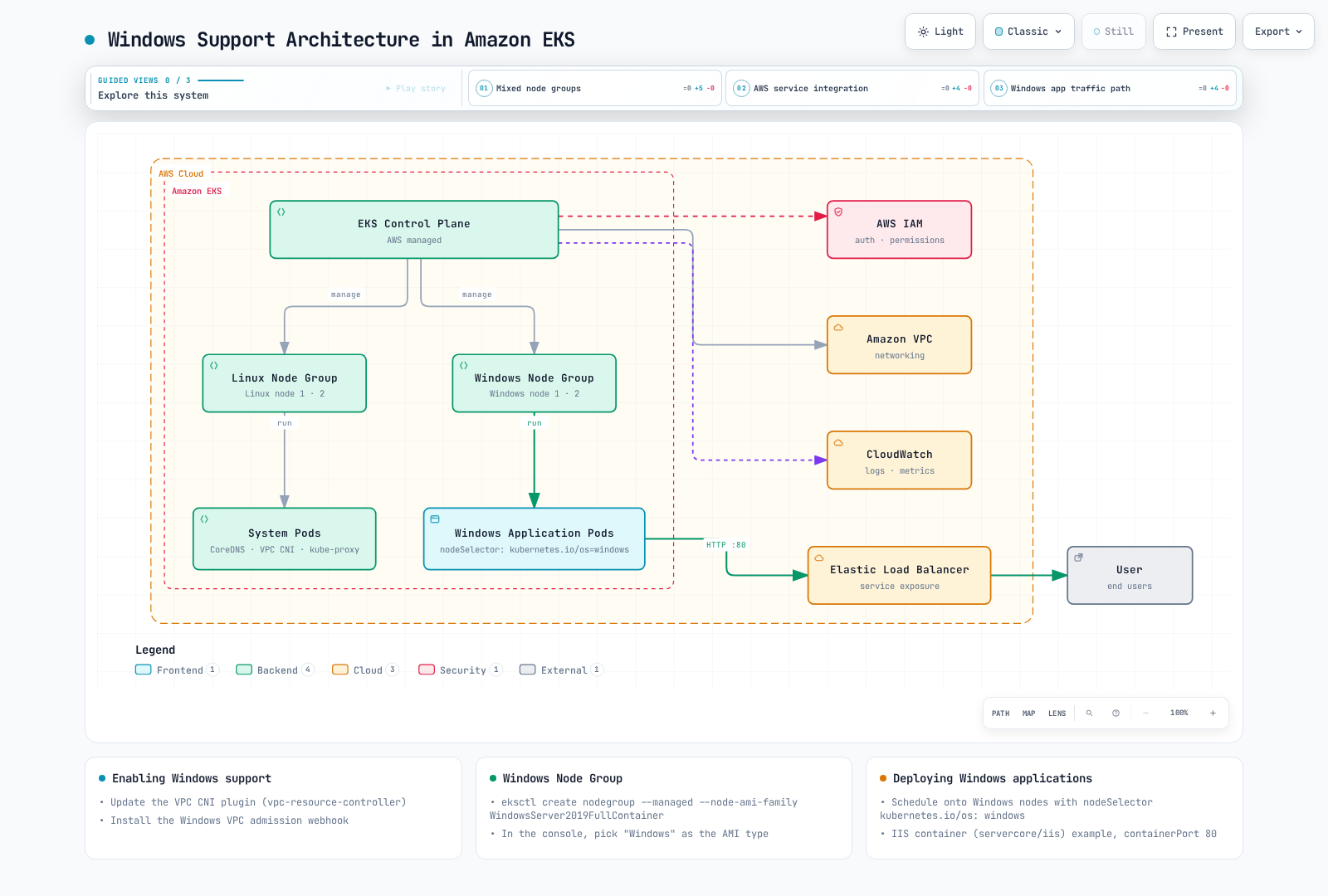
The following diagram shows the Windows support architecture in Amazon EKS:
Enabling Windows Support in EKS
EKS manages the VPC resource controller responsible for Windows IPAM. Do not install the old release-1.11 controller/webhook manifests. Grant the cluster IAM role AmazonEKSVPCResourceController permissions and follow current AWS setup instructions to set enable-windows-ipam: "true" in kube-system/amazon-vpc-cni. Preserve existing keys and configure through the owning Helm/add-on workflow where applicable.
Provide Linux nodes or a supported Fargate setup for CoreDNS. Windows is unsupported for EKS Auto Mode, Fargate workloads, Hybrid Nodes, IPv6, custom networking and security groups for Pods. The Windows node-role access entry type is EC2_WINDOWS; legacy aws-auth mappings need the eks:kube-proxy-windows group.
Creating Windows Node Groups
Create Windows node group using eksctl:
eksctl create nodegroup \
  --cluster my-cluster \
  --region us-west-2 \
  --name windows-ng \
  --node-type t3.large \
  --nodes 2 \
  --nodes-min 1 \
  --nodes-max 4 \
  --managed \
  --node-ami-family WindowsServer2022FullContainer
Creating Windows node group using AWS Management Console:
- Select cluster in EKS console
- Select "Compute" tab
- Click "Add node group"
- Enter node group details
- Select "Windows" as the AMI type
- Configure remaining settings and create
Deploying Windows Applications in EKS
Example of deploying Windows applications in EKS:
apiVersion: apps/v1
kind: Deployment
metadata:
  name: windows-server-iis
spec:
  selector:
    matchLabels:
      app: windows-server-iis
      tier: backend
      track: stable
  replicas: 2
  template:
    metadata:
      labels:
        app: windows-server-iis
        tier: backend
        track: stable
    spec:
      os:
        name: windows
      nodeSelector:
        kubernetes.io/os: windows
      containers:
      - name: windows-server-iis
        image: mcr.microsoft.com/windows/servercore/iis:windowsservercore-ltsc2022
        ports:
        - name: http
          containerPort: 80
        resources:
          limits:
            cpu: 1
            memory: 800Mi
          requests:
            cpu: .1
            memory: 300Mi
---
apiVersion: v1
kind: Service
metadata:
  name: windows-server-iis-service
  labels:
    app: windows-server-iis
spec:
  ports:
  - port: 80
    protocol: TCP
  selector:
    app: windows-server-iis
  type: LoadBalancer
Windows Container Logging in EKS
Windows Container Insights is supported by CloudWatch Observability EKS add-on 1.5.0 and later. Select a cluster-compatible add-on version, IAM permissions and Windows agent configuration. Windows Application Signals is unsupported.
Collect Windows stdout/stderr from kubelet CRI log locations (typically C:\var\log\pods and C:\var\log\containers); verify distribution paths instead of copying Linux /var/log and Docker-parser configuration. EKS writes kubelet/kube-proxy logs to the EKS Windows event log. Mounting .evtx files into a regular container does not make winlog read the host event API. Use a host service or reviewed HostProcess collector.
Best Practices
Let's explore best practices for running Windows workloads in Kubernetes.
Cluster Design Best Practices
- Mixed Node Pools: Use appropriate mix of Linux and Windows nodes
- Node Labels and Taints: Use appropriate node labels and taints to separate workloads
- Version Compatibility: Verify compatibility between Kubernetes version and Windows version
- Network Plugin Selection: Select appropriate network plugin that supports Windows
- High Availability: Configure high availability for critical workloads
Application Design Best Practices
- Container Image Optimization: Use small and efficient container images
- Resource Requests and Limits: Set appropriate resource requests and limits
- Stateless Design: Design stateless applications when possible
- Logging and Monitoring: Configure effective logging and monitoring
- Security Hardening: Apply appropriate security contexts and network policies
Operations Best Practices
- Regular Updates: Regularly update Windows nodes and container images
- Automation: Automate deployment and management tasks
- Backup and Recovery: Regularly backup important data
- Troubleshooting Tools: Build appropriate troubleshooting tools and processes
- Documentation: Document configurations and procedures
EKS-Specific Best Practices
- Managed Node Groups: Use managed node groups when possible
- IAM Roles for Service Accounts (IRSA): Manage IAM permissions per pod
- VPC CNI Configuration: Configure VPC CNI according to networking requirements
- Security Groups: Configure appropriate security groups
- Cost Optimization: Select appropriate instance types and sizes
Conclusion
Windows support in Kubernetes continues to evolve, and you can now run Windows workloads in production environments. Windows nodes can run alongside Linux nodes in the same cluster, allowing you to manage diverse workloads in a single Kubernetes cluster.
Windows containers enable containerizing .NET Framework applications, Windows services, and other Windows-specific workloads to leverage Kubernetes orchestration capabilities. However, there are some limitations compared to Linux containers, so it's important to understand and address these limitations appropriately.
Amazon EKS provides managed services for Windows nodes, making it easy to deploy and manage Windows workloads. Leveraging EKS's Windows support can simplify the process of migrating Windows applications to modern container environments.
To successfully implement Windows in Kubernetes, it's important to follow appropriate planning, design, and operational best practices. This allows you to efficiently manage Windows and Linux workloads and leverage all the benefits of Kubernetes.
Quiz
To test what you learned in this chapter, try the Windows in Kubernetes Quiz.
Verification References
- https://kubernetes.io/docs/concepts/windows/intro/
- https://kubernetes.io/docs/tasks/administer-cluster/kubeadm/adding-windows-nodes/
- https://kubernetes.io/docs/tasks/configure-pod-container/create-hostprocess-pod/
- https://kubernetes.io/docs/tasks/configure-pod-container/configure-gmsa/
- https://learn.microsoft.com/en-us/virtualization/windowscontainers/deploy-containers/version-compatibility
- https://github.com/microsoft/windows-container-tools/tree/main/LogMonitor
- https://docs.aws.amazon.com/eks/latest/userguide/windows-support.html
- https://docs.aws.amazon.com/AmazonCloudWatch/latest/monitoring/install-CloudWatch-Observability-EKS-addon.html