AI Diagnosis
A page for generating and reading comprehensive diagnostic reports that analyze your account's overall operational state from AWS-native data.
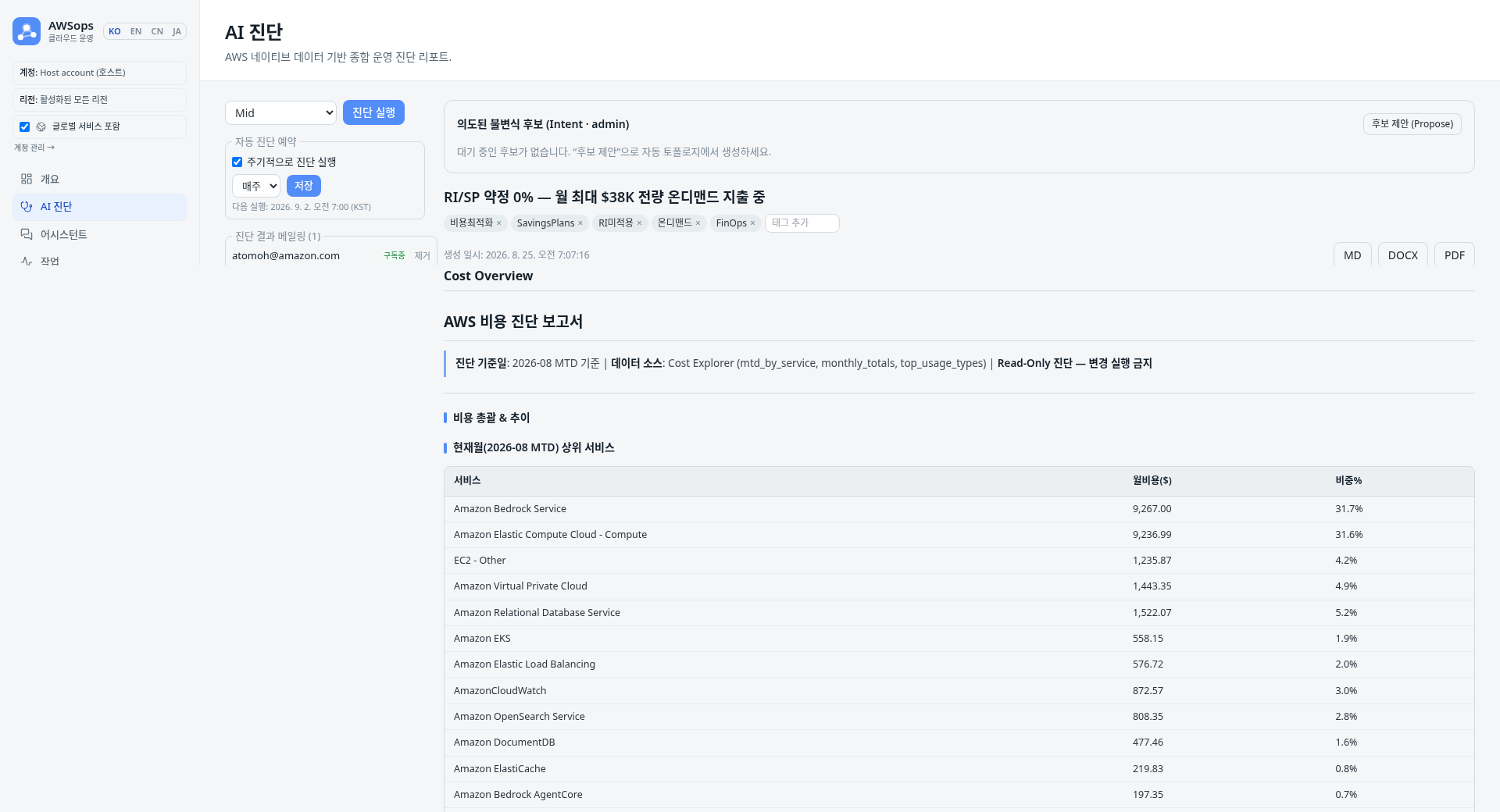
Features
Run a diagnosis
- Diagnosis depth (Tier): choose the scope of analysis.
- Light: a fast check of core items only (currently identical catalog/token budget to Mid)
- Mid: a balanced standard diagnosis (default)
- Deep: a broad analysis covering 15+1 sections (16 rendered). Only Deep lets you additionally pick a model (Sonnet / Opus), and choosing Opus shows an accompanying cost note.
- Report language: choose the report body language (한국어 / English / 中文 / 日本語). It defaults to the current UI language, and switching only the language within the same hour starts a new report.
- Press the 진단 실행 (Run diagnosis) button and the report is produced asynchronously by a background worker.
Progress indicator
- While generating, an mm:ss elapsed timer and a per-section completed/pending checklist grid accompany the progress bar; a completed report shows a section count · duration · report id stats bar (duration omitted on older reports without a recorded finish time).
- While the report is being produced, a live progress bar shows the data collection → section analysis → assembly stages.
- The report opens automatically once it is done.
Report list
The left sidebar lists your recent reports — completed rows carry inline MD/DOCX download links so you can download without opening the report:
- An auto-generated title, the id, depth (Tier), model, status, and creation date (KST)
Report body
-
The body renders as collapsible section cards with severity icons and a sticky table of contents (TOC) sidebar on the right.
-
Use the top buttons to export as MD / DOCX / PDF, or open Print view — a new tab with a white A4 layout (cover, numbered TOC, per-section page breaks) for direct browser Print-to-PDF.
-
Manual report handoff is available for
succeededorpartialreports with readable Markdown. Preview, copy or download selected excerpts with omission/truncation notices. Template headings, notices and checklists are English; excerpts preserve the source report's language. Transfer is manual; no publishing or external agent invocation.
Insight badges
- Invariant assessment coverage separates total, assessed, passed, violated and unassessed counts. Unassessed reasons appear in the UI, report body and exports; unassessed results or an empty violation list do not establish health or improvement. Historical reports without recorded coverage show assessment unavailable.
- The current collector path still needs relationship-resolution and encryption-aggregate integration, so its six invariant kinds remain unassessed. Read these separately from observations in other diagnosis sections.
- An intended-vs-actual / change insights badge row summarizes invariant violations and changes versus the previous report.
- The Intent (invariant candidates) panel lets you propose, accept, and reject candidates. (Admin-only; read-only for everyone else.)
Title, tags, and delete
- The report owner or an admin can edit the title inline, add and remove tags, and soft-delete the report.
Scheduled diagnosis & notifications
- Scheduled diagnosis: besides the cadence (weekly/biweekly/monthly) you can pick a weekday (weekly/biweekly), a day of month 1–28 (monthly), a run hour (KST), and the report language; the next run and last run times are both shown. Unset fields keep the interval-only behavior.
- Diagnosis mailing list: admins can, in addition to adding/removing subscribers, press Send test to deliver one test email to every confirmed subscriber and verify delivery. The email notification switch at the top of the panel pauses report/digest emails without a deploy (admin-only) — reports completed while paused are dropped from email (not re-sent on resume; a pause shorter than the ~15-minute digest cadence may drop nothing — the flag is checked per run), and the test-send button still works while paused (delivery-path verification). The same switch and subscriber list also govern the compliance benchmark completion mail on the shared topic.
How to use
- In the sidebar, click AI Operations > AI Diagnosis.
- Select a diagnosis depth (Light / Mid / Deep).
- If you chose Deep, optionally specify the model (Sonnet / Opus).
- Choose the report language (default: the current UI language).
- Press the 진단 실행 (Run diagnosis) button to start generation.
- Watch the stages on the progress bar; when it finishes, review the report that opens automatically.
- Navigate sections with the table of contents sidebar on the right (section cards collapse/expand), and export as MD / DOCX / PDF from the top.
- Edit the title and tags or delete the report if needed (when you have permission).
Tips
If you run the same conditions (depth, model, and language) again within the hour, the existing report is returned instead of generating a new one, along with a duplicate-run notice.
Editing the title, tags, and deletion are available only to the report owner or an admin. Proposing, accepting, and rejecting invariant candidates is admin-only and is shown read-only to other users.
AI Diagnosis only observes and analyzes AWS resources — it never modifies them. Reports are for analysis purposes only.
AI analysis tips
After reviewing a report, you can ask follow-up questions from the floating button or the AI Assistant page, for example:
- "What is the riskiest item in this diagnosis?"
- "What changed compared to the previous report?"
- "Explain the cause of the invariant violations shown."
Related pages
- AI Assistant - follow-up questions about report results
- Async Jobs - check the progress of diagnosis generation