Sign In
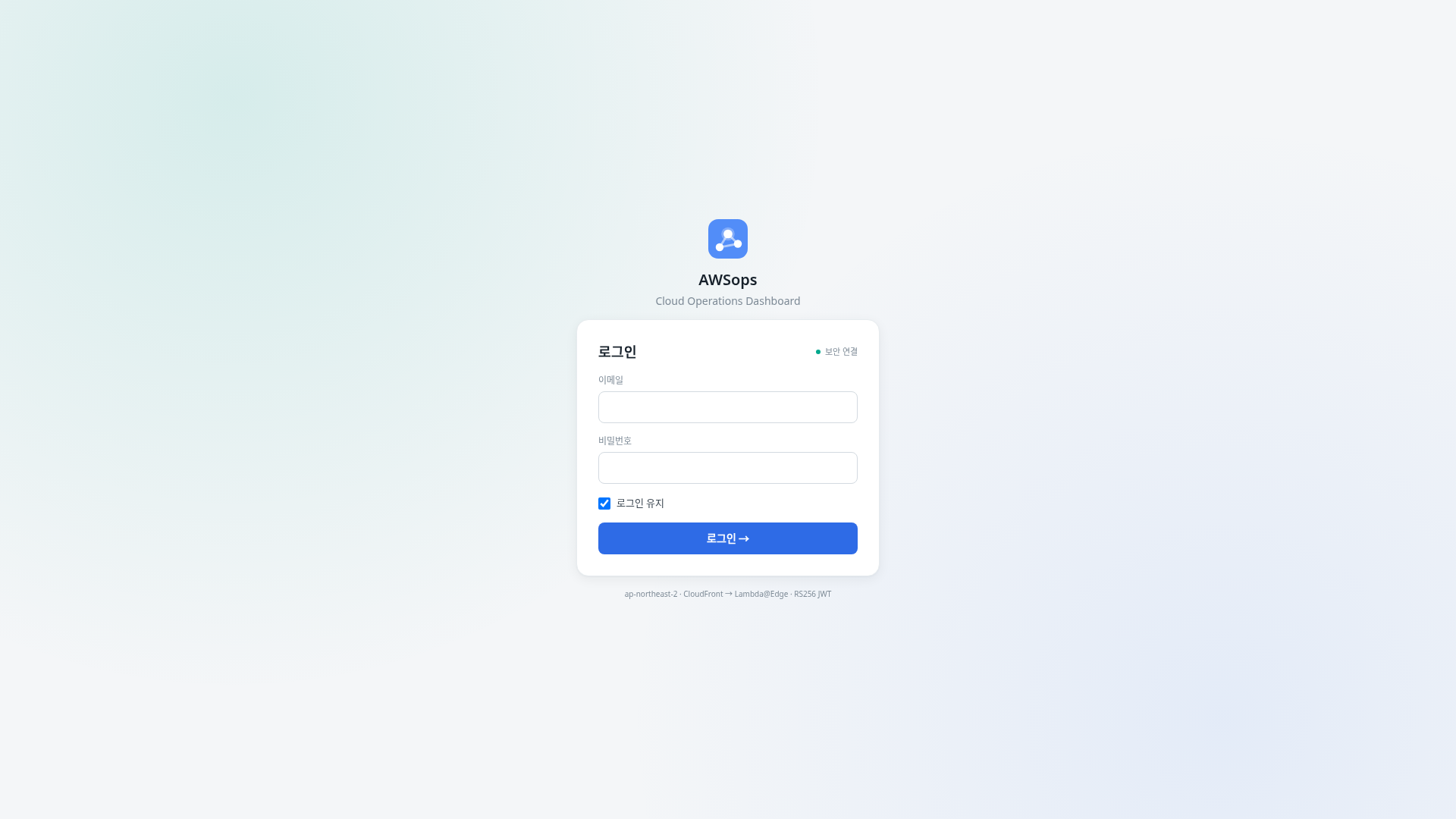
A page for signing in to AWSops with your email and password.
Features
Sign-in form
- Email: Enter the email address you were issued.
- Password: Enter your password.
- Stay signed in: When checked, your session persists even after you close and reopen the browser. Uncheck it on shared computers.
- Sign in →: The button that attempts sign-in with the credentials you entered.
Automatic redirect
- If you open any page while signed out, you are automatically redirected to the Sign In screen.
- After a successful sign-in, you go straight to the dashboard (or the page you were originally headed to).
Error messages
- Invalid email/password, an account that requires an additional challenge, or a temporary service error are shown as an inline alert inside the form.
How to Use
- Open AWSops in your browser. If you are not signed in, the Sign In screen appears.
- Enter your Email and Password.
- Leave Stay signed in checked to keep your session.
- Click the Sign in → button.
- Once authenticated, you are taken to the dashboard.
- To sign out, click the sign-out icon next to your account at the bottom of the left sidebar. Your session is cleared and you return to the Sign In screen.
Tips
Stay signed in
Checking Stay signed in means you don't have to sign in again next time. On shared or public devices, uncheck it and always sign out when you're done.
When sign-in fails
An inline alert appears at the top of the form. Double-check your email and password; if it keeps failing, try again shortly or contact your administrator.
Related Pages
- Layout & Themes - Understanding the sidebar, command palette, and themes