Layout & Themes
A page for getting familiar with the AWSops layout — sidebar navigation, the command palette, themes, and the mobile layout.
Features
Left Sidebar
A fixed area on the left of the screen — the primary way to reach every page.
- Header: the AWSops mark and a 한국어/English/中文/日本語 language selector
- Pinned top items: Overview, AI Diagnosis, Assistant, Jobs, Cost, Bedrock, Topology, Custom Agents, Datasources
- Resource inventory groups: below those come the Compute (EKS, EC2, Lambda, ECS Clusters, ECS Tasks, ECR), Storage & DB, Network, Security, and Monitoring groups
- Footer: your signed-in identity and Sign out, the region/connection status, and the theme picker
- The page you are currently viewing is shown with a highlight
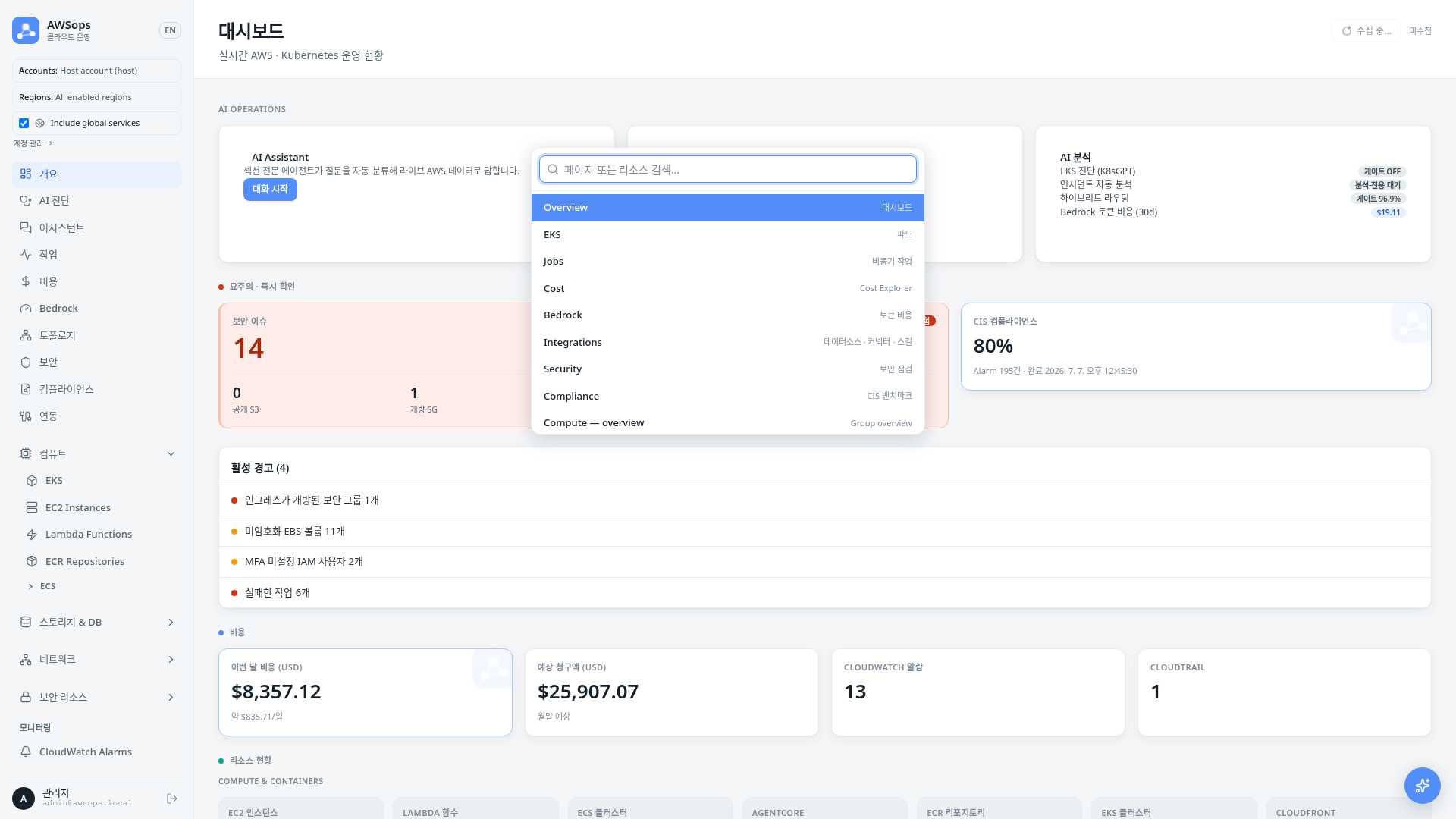
Command Palette (Cmd-K)
A search box for jumping anywhere from the keyboard.
- Open it from any page with Cmd-K (macOS) or Ctrl-K (Windows/Linux)
- Type a page name, resource type, or part of a path to filter
- Use the Up/Down arrows to move, Enter to go, and Esc to close
- Beyond navigation, the Theme: Cobalt / Teal / Dark entries switch the theme directly
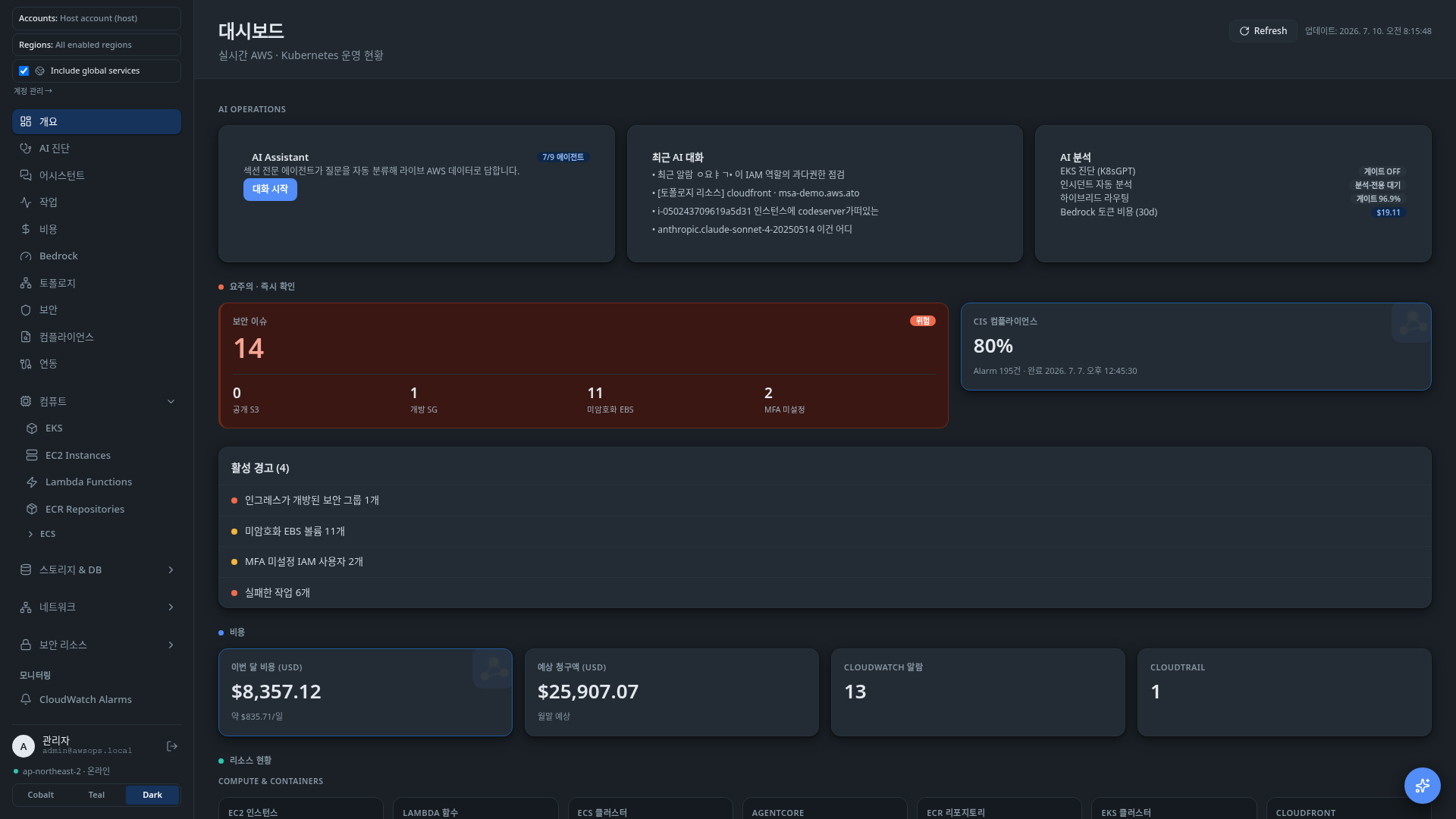
Themes
Pick the app's color scheme from the 3-way theme picker in the bottom-left (sidebar footer).
| Theme | Description |
|---|---|
| Cobalt | Default. A light cobalt palette |
| Teal | A light teal palette |
| Dark | A dark mode |
- Your choice is saved in the browser and persists across reloads
- Charts and the AWSops mark adapt their colors to the selected theme
Mobile Layout
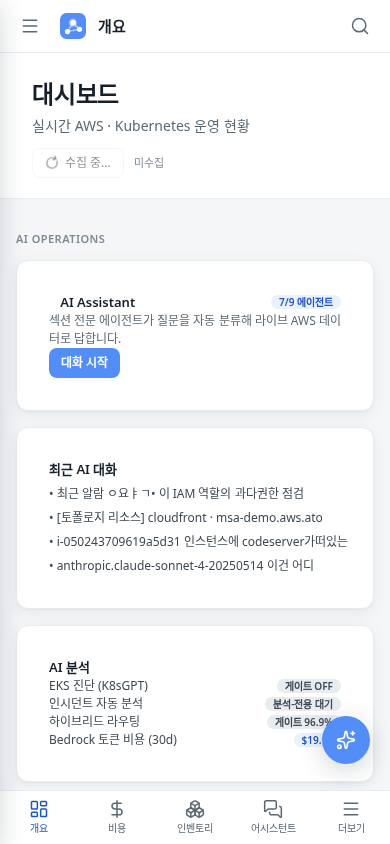
When the screen is narrow (under 1024px), the layout automatically switches to a mobile layout.
- Top bar: a hamburger menu, the page title, and a search (command palette) icon
- Bottom tab bar: five tabs — Overview · Cost · Inventory · Assistant · More
- Tapping the More tab or the hamburger opens a slide-in drawer with the full menu
How to Use
- On desktop, click a menu item in the left sidebar to open the page you want.
- Press Cmd-K (or Ctrl-K) to open the command palette, type a page name, and press Enter to go.
- In the sidebar footer's theme picker, click Cobalt, Teal, or Dark.
- On mobile, switch between key pages with the bottom tabs, and open the rest from More.
- From any page, open the chat with the floating AI assistant button.
Fastest way to jump
When there are many pages, typing part of a name into Cmd-K beats scanning the sidebar. Type Theme: in the palette to switch themes instantly too.
Timestamps
All timestamps shown in the app are in KST (Asia/Seoul).
Related Pages
- Dashboard - The overall resource summary and starting point