Topology
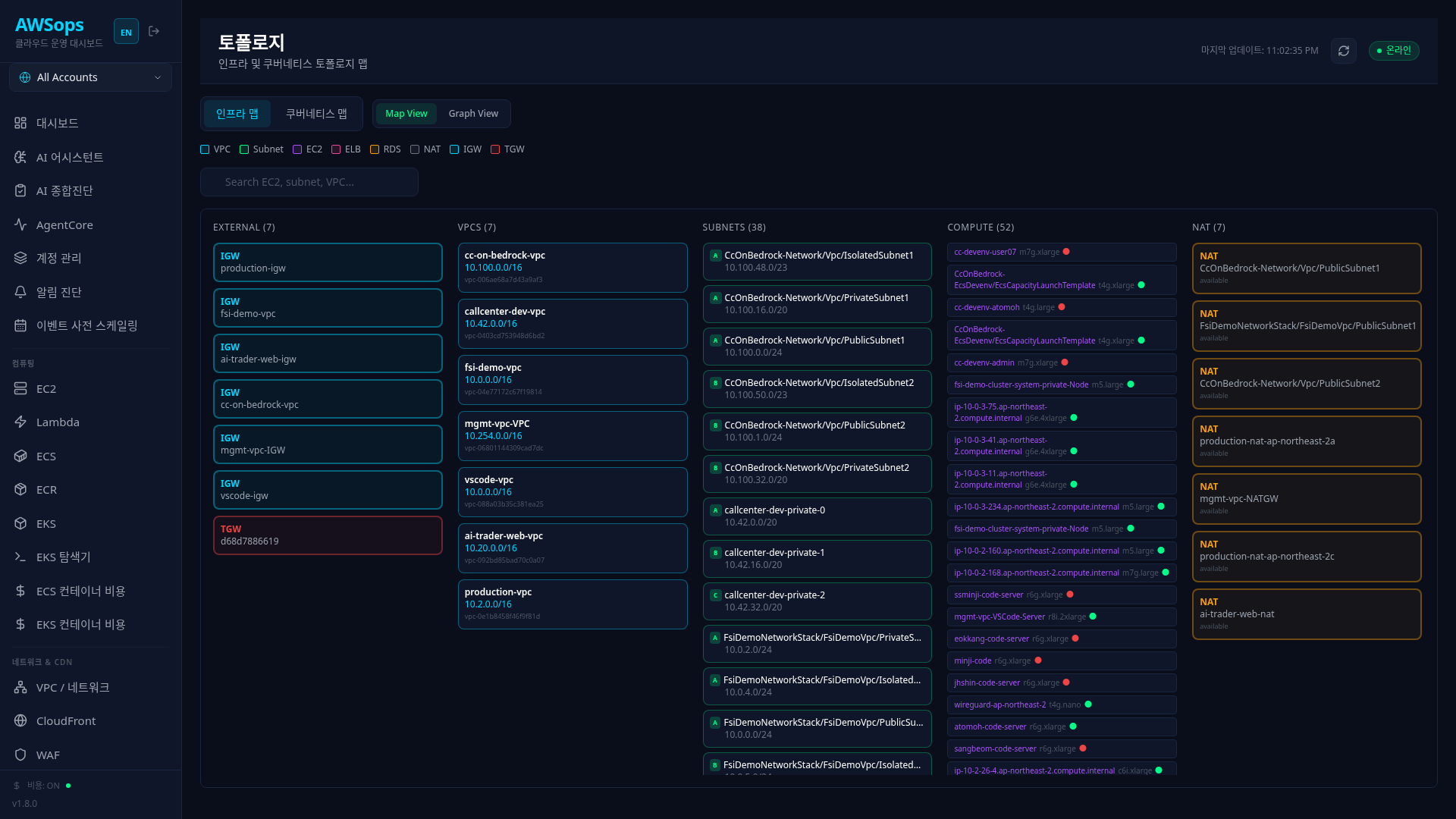
A page to visually explore relationships between AWS infrastructure and Kubernetes clusters.
Key Features
View Toggle
Switch between two views using the top toggle:
| View | Target | Purpose |
|---|---|---|
| Infrastructure | AWS Resources | Visualize VPC, EC2, RDS, ELB relationships |
| Kubernetes | EKS Workloads | Pod, Service, Ingress, Node relationships |
Infrastructure View
Two display modes are available:
Map View (Default)
- 5-column layout showing resource hierarchy
- External (IGW/TGW) → VPCs → Subnets → Compute → NAT
- Click/search to highlight related resources
Graph View
- React Flow-based node-edge graph
- Drag nodes to reposition
- Zoom/pan for navigation
- MiniMap for overall structure overview
Kubernetes View
Displays EKS workloads in a 4-column resource map:
| Column | Resource | Description |
|---|---|---|
| Ingress | K8s Ingress | External traffic entry point |
| Services | K8s Service | Load balancing, ClusterIP/NodePort/LoadBalancer |
| Pods | K8s Pod | Running containers |
| Nodes | EKS Node | Worker nodes (EC2) |
Interactive Features
Search
- Infrastructure: Search EC2, Subnet, VPC by name/ID/CIDR
- Kubernetes: Search Pod, Service, Namespace
- Automatically highlights matched and related resources
Click Selection
- Click a resource to select it
- All connected resources are highlighted
- Click again to deselect
Graph View Only
- Mouse wheel: Zoom in/out
- Drag: Pan canvas
- Node drag: Adjust node position
- Controls: Zoom reset, fit to screen
- MiniMap: Overview preview
How to Use
Understand Infrastructure Structure
- Select Infrastructure view
- Review hierarchical structure in Map View
- Follow the VPC → Subnet → EC2 flow
- Check external connectivity via IGW/TGW
Track Specific Resources
- Enter resource name/ID in the search bar
- View highlighted matching resources
- Related VPC and Subnets are also highlighted
- Click "Clear search" button to reset
Analyze K8s Traffic Flow
- Select Kubernetes view
- Follow the Ingress → Service → Pod → Node flow
- Click a Service to see connected Pods
- Search to track specific workloads
Use Graph View
- Select Graph View in Infrastructure view
- React Flow graph renders
- Drag nodes to adjust layout
- Use MiniMap to view overall structure
Tips
Network Path Tracing
To trace the path from a specific EC2 to the external internet:
- Enter EC2 name in the search bar
- Check the highlighted Subnet
- Verify if Subnet is connected to NAT Gateway or IGW
- Private Subnet uses NAT, Public Subnet uses IGW path
K8s Service Debugging
Troubleshooting "No Pods connected to Service":
- Click the Service in Kubernetes view
- Check connected Pods (0 pods indicates a problem)
- Verify Pod labels match Service selector
- If Pods exist, trace to Node to check resource status
Color Legend
| Color | Infrastructure | Kubernetes |
|---|---|---|
| Cyan | VPC, IGW | Ingress |
| Green | Subnet | Node |
| Purple | EC2 | Pod |
| Pink | ELB | - |
| Orange | RDS, NAT | Service |
| Red | TGW | - |
The legend chips in the info line above the map show only the kinds present in the current graph. The status dot next to a card name is also shown in the legend — ok (green) / warn (amber) / bad (red) / neutral (gray).
Related Pages
- VPC - VPC details and resource map
- EKS Overview - EKS cluster details
- EC2 - EC2 instance details