EC2 Instances
A page for monitoring the real-time status of EC2 instances and viewing detailed information.
This screen isn't a dedicated page — it's served through v2's shared inventory view (/inventory/ec2, under the "Compute" group in the sidebar). The content below reflects the actual v2 inventory view configuration (HIGHLIGHTS.ec2/INVENTORY_TYPES.ec2 in web/lib/inventory-types.ts), not v1's dedicated EC2 page.
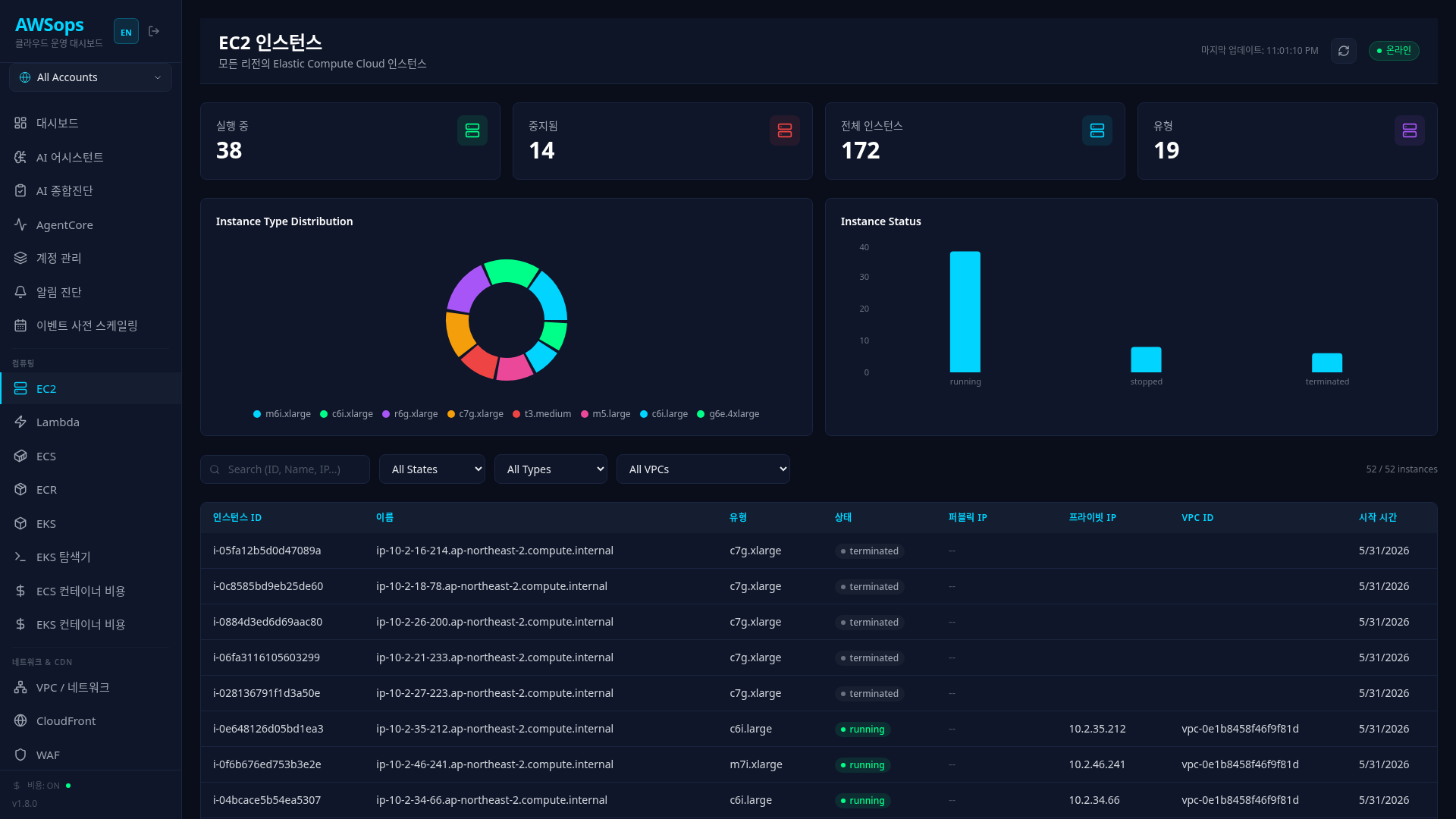
Key Features
Highlight Cards
Five highlight cards at the top of the page display key metrics:
- Running: Instances where
instance_stateis running - Stopped: Instances where
instance_stateis stopped - Public IP: Instances with a public IP assigned
- Instance types: Distinct count of
instance_typein use - Running total vCPUs: sum of actual vCPUs across running instances (
cpu_optionscores × threads — the per-instance actual value, not the type default)
Visualization Charts
- Distribution donuts by instance type (
instance_type) and instance state (instance_state) - Top-N bar chart ranking instances by memory (MiB)
Instance List Table
Displays all EC2 instances in a table format:
- Name, Type, State, Pricing, Private/Public IP, Subnet, VPC, Launch Time
- Color-coded status badge based on state (running/stopped, etc.)
Filters and Search
- Search box: Text search across all fields including ID, Name, IP
- State filter: Filter by status such as running, stopped
- Type filter: Filter by instance type such as t3.micro, m5.large
- VPC filter: Filter by VPC ID
- Clear all: Reset all filters
Detail Panel
Click an instance row in the table to open the detail panel on the right:
- Instance section: Instance ID, AMI, Architecture, Platform, Key Pair, IAM Role, etc.
- Compute section: vCPUs, Cores, Threads/Core, Memory, Network Performance
- Network section: VPC, Subnet, AZ, Private/Public IP, DNS, Network Interfaces
- Security Groups section: List of attached security groups
- Storage section: Root Device, Block Device Mappings
- Tags section: List of tags configured on the instance
How to Use
- Click Compute > EC2 in the sidebar
- Review the overall status from the highlight cards at the top
- Use filters to find specific instances
- Click an instance in the table to view detailed information
- Use the refresh button to load the latest data
Tips
You can quickly find instances by entering just part of an IP address in the search box.
Use multiple filters simultaneously for more precise instance searches. For example, view only "t3.large instances in running state".
You can analyze with the AI Assistant using queries like "Show me EC2 instance list", "How many running instances are there?", etc.
Related Pages
- VPC - Check network configuration
- EBS - Check attached volumes
- Monitoring - Check CPU/memory metrics