CloudWatch
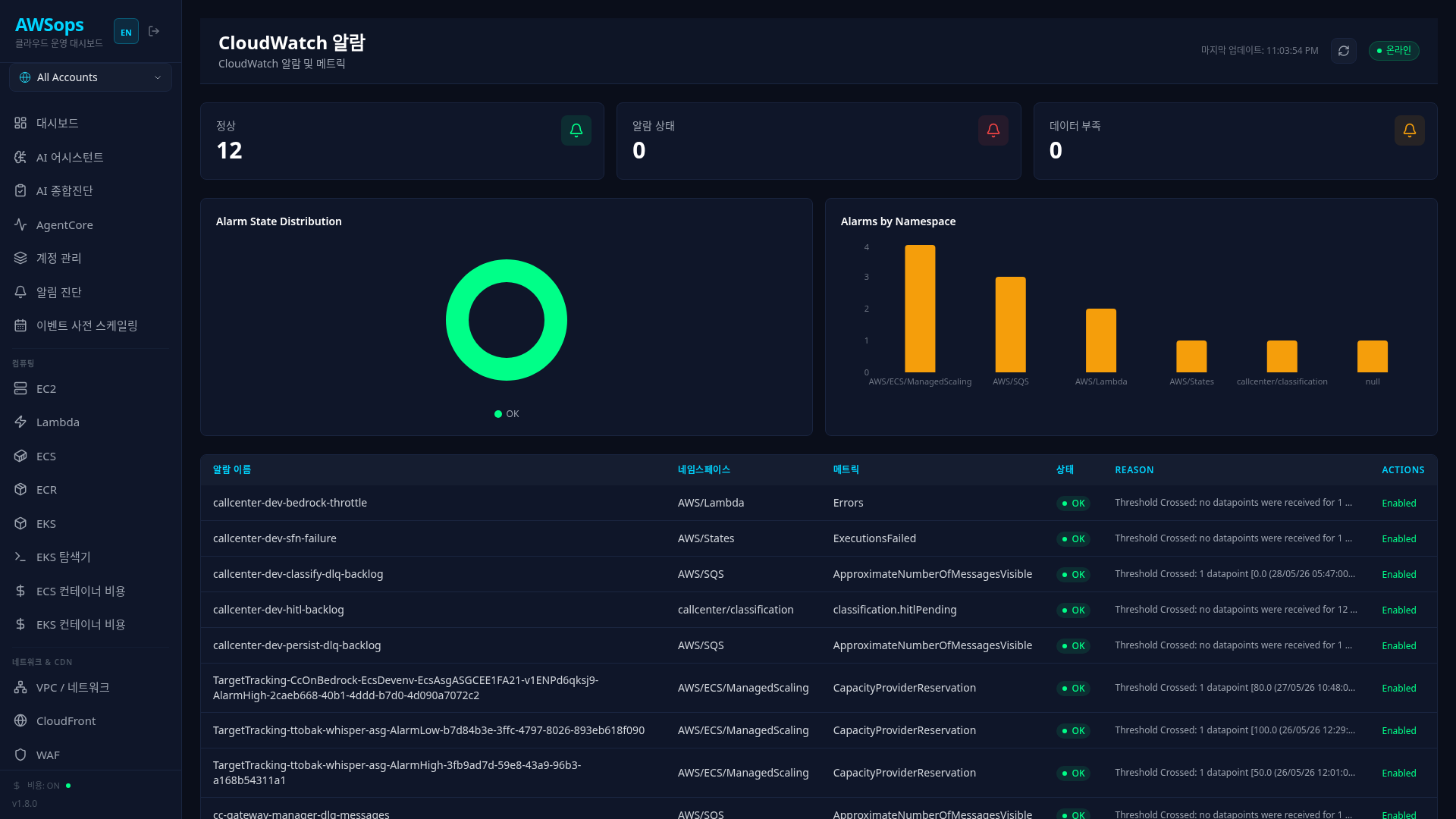
A page for viewing AWS CloudWatch alarm states at a glance and examining detailed configurations.
Key Features
Alarm State Summary
- OK: Number of alarms in normal state (green)
- ALARM: Number of triggered alarms (red)
- INSUFFICIENT_DATA: Number of alarms with insufficient data (gray)
Visualizations
- Alarm State Distribution: Pie chart showing alarm distribution by state (semantic colors: OK green · ALARM red · INSUFFICIENT_DATA gray)
- The alarm table sorts worst-first by default (ALARM → INSUFFICIENT_DATA → OK, newest state change first); a column-header sort overrides it
- Alarms by Namespace: Bar chart showing alarm count by namespace
Alarm List
| Column | Description |
|---|---|
| Alarm Name | Name of the alarm |
| Namespace | AWS service namespace (AWS/EC2, AWS/RDS, etc.) |
| Metric | Metric being monitored |
| State | Current state (OK, ALARM, INSUFFICIENT_DATA) |
| Reason | Reason for state change |
| Actions | Whether actions are enabled |
Alarm Details
Click on an alarm row to view details in the slide panel:
- Alarm: Name, ARN, state, state reason
- Configuration: Comparison operator, threshold, evaluation periods, statistic
- Actions: Actions executed on alarm/OK/insufficient data (SNS, Lambda, etc.)
How to Use
- Filter by State: Click StatsCards at the top to filter by alarm state
- Check Namespace: Identify services with many alarms from the bar chart
- View Details: Click an alarm row to view configuration and actions
- Refresh: Click the button in the top right to fetch latest state
Alarm State Meanings
- OK: Metric is within threshold
- ALARM: Metric exceeds/falls below threshold (depending on configuration)
- INSUFFICIENT_DATA: Insufficient metric data or alarm just created
Usage Tips
Check ALARM State Immediately
If the red "ALARM" StatsCard shows "Active alarms!", immediate attention is required.
Verify Action Configuration
If Actions Enabled shows "No" in alarm details, no notifications will be sent when the alarm triggers. Verify that an SNS topic or Lambda function is connected.
Resolving INSUFFICIENT_DATA
- Newly created alarms: Wait for metric collection (up to 5-10 minutes)
- Existing alarms: Check metric source (EC2 stopped, Lambda inactive, etc.)
Alarm Evaluation Periods
For an alarm to enter ALARM state, the threshold must be exceeded for consecutive evaluation periods. Example: Period 300s, Eval Periods 3 = alarm triggers after 15 minutes of continuous threshold breach.
AI Analysis Tips
Example questions using the Monitoring Gateway in AI Assistant:
- "Analyze the common causes of alarms in ALARM state"
- "Show alarm state change history for the last 24 hours"
- "Analyze whether this alarm threshold is appropriate"
- "Would it be better to use SNS instead of Lambda for alarm actions?"
Related Pages
- Monitoring Overview - Performance metrics
- CloudTrail - API activity audit
- Cost Explorer - Cost analysis