Account Management
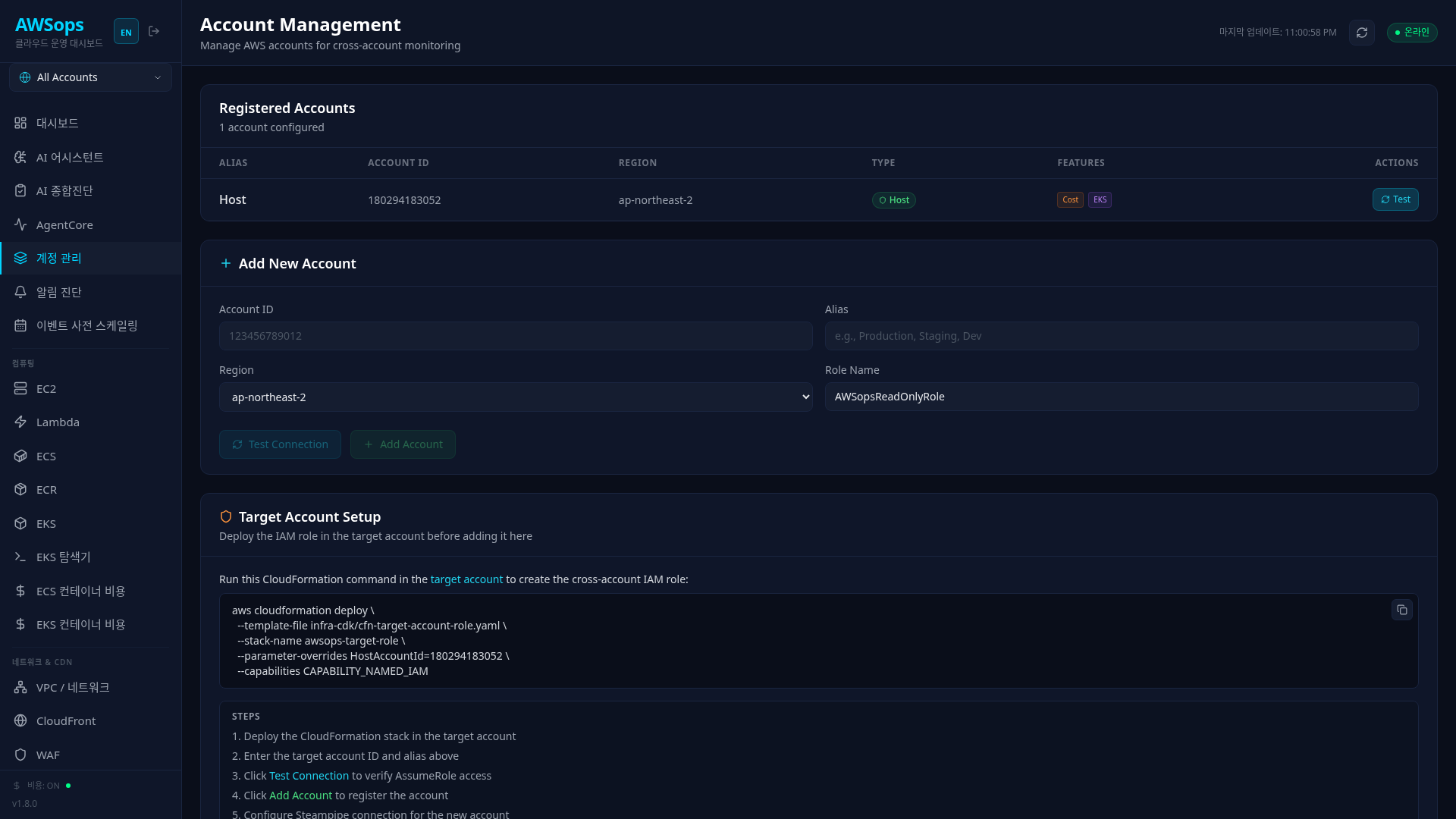
The Account Management page is an admin-only page for managing multi-account monitoring in AWSops. It provides host account auto-detection, target account add/remove, connection testing, and feature detection all in one place.
Setup Flow
The diagram below illustrates the registration process for both Host and Target accounts, along with the admin access control flow. Hover over each node to see a detailed description.
Key Features
Host Account Setup
When no accounts are registered, a host account registration banner is displayed upon accessing the page.
| Item | Description |
|---|---|
| Auto-Detection | Calls STS GetCallerIdentity using EC2 instance credentials |
| Feature Detection | Probes Cost Explorer, EKS, and K8s APIs to auto-configure available features |
| Alias Input | Set a display name for the host account (default: "Host") |
| config.json Registration | Registered in the accounts[] array of data/config.json with isHost: true |
Registered Account Management
All registered accounts are displayed in a table format.
| Column | Description |
|---|---|
| Alias | Account display name |
| Account ID | 12-digit AWS account ID |
| Region | Default region |
| Type | Host or Target |
| Features | Cost, EKS, K8s activation status (as badges) |
| Actions | Connection test, remove (Host account cannot be removed) |
Adding a New Account
To add a target account, enter the following information.
| Field | Format | Description |
|---|---|---|
| Account ID | 12-digit number | AWS account ID |
| Alias | Letters/numbers/spaces/hyphens/underscores | Name displayed in the dashboard |
| Region | Dropdown | Select from 10 major regions |
| Role Name | String | Cross-account IAM role name (default: AWSopsReadOnlyRole) |
Always verify the AssumeRole connection with Test Connection before adding an account.
Target Account CloudFormation Deployment
Before adding a new account, you must first create the cross-account IAM role in that account.
aws cloudformation deploy \
  --template-file infra-cdk/cfn-target-account-role.yaml \
  --stack-name awsops-target-role \
  --parameter-overrides HostAccountId=<HOST_ACCOUNT_ID> \
  --capabilities CAPABILITY_NAMED_IAM
This command creates:
- AWSopsReadOnlyRole: A read-only role that can be assumed from the host account
- Trust Policy: Specifies the host account ID as the Principal
- Permissions: ReadOnlyAccess plus additional required policies
Admin Access Control
The Account Management page is restricted to administrators only.
| Item | Description |
|---|---|
| Configuration | adminEmails array in data/config.json |
| Empty Array | When set to [], all authenticated users are allowed access |
| Verification Flow | Extract email from JWT, match against adminEmails array, allow or deny |
| Rate Limiting | 5 requests per minute per user |
| API Protection | add-account, remove-account, and init-host all enforce the same admin check |
{
  "adminEmails": ["admin@example.com", "ops@example.com"]
}
If adminEmails is an empty array, any authenticated user can add or remove accounts. Always specify administrator emails in production environments.
How to Use
- Register Host Account: On first access, enter an alias in the banner and click "Detect & Register Host"
- Prepare Target Account: Deploy the CloudFormation stack in the target account
- Test Connection: Enter the Account ID and click "Test Connection" to verify AssumeRole access
- Add Account: Enter the Alias and Region, then click "Add Account"
- Verify: Check the Features badges in the registered accounts table
- Steampipe Configuration: Configure the Steampipe connection for the new account (auto-added to Aggregator)
Tips
When an account is registered, Cost, EKS, and K8s features are auto-detected. If a badge is not displayed, it means the service is not enabled or permissions are insufficient in that account.
The aws connection queries data across all registered accounts. For individual account queries, the aws_{accountId} connection is used, selectable from the AccountSelector dropdown.
Removing a target account does not automatically delete the CloudFormation stack in that account. If needed, delete the stack separately in the target account.
AI Analysis Tips
Ask the AI Assistant the following questions to quickly check information about registered accounts:
- "Show me the list of registered accounts"
- "Which accounts have Cost Explorer enabled?"
- "Which accounts have EKS clusters?"
- "Show me the resource status for the Staging account"
- "Compare the number of EC2 instances across all accounts"
Related Pages
- Dashboard - Multi-account unified dashboard
- AI Assistant - AI-powered account analysis
- AgentCore - Cross-account tool execution