IAM
The IAM (Identity and Access Management) page allows you to view and manage users, roles, and policies in your AWS account at a glance.
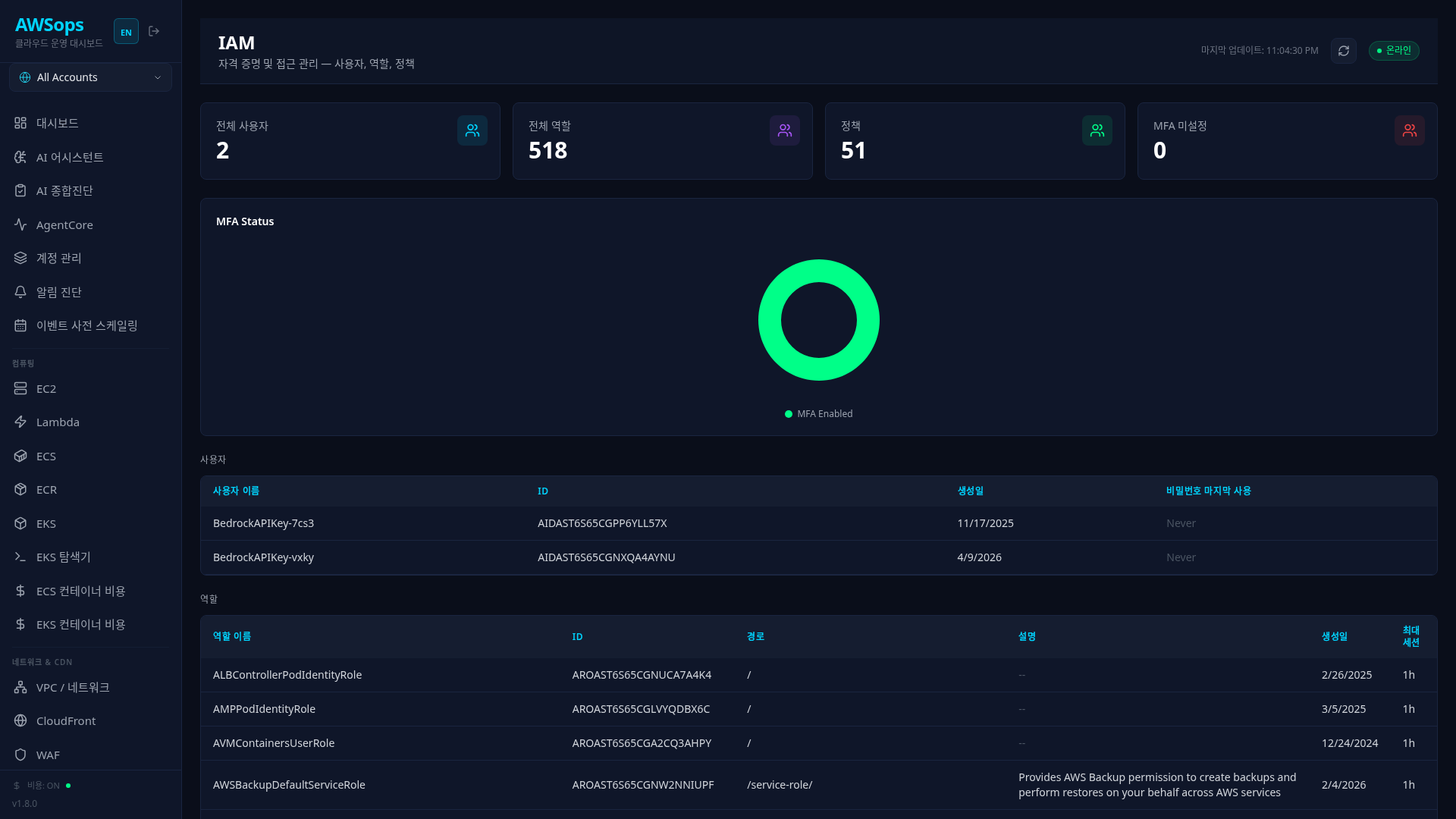
Key Features
Summary Statistics
At the top of the page, you can view the IAM resource status:
- Users: Total number of IAM users
- Roles: Total number of IAM roles
- Custom Policies: Number of customer-managed policies
- MFA Not Enabled: Number of users without MFA enabled
A warning banner appears at the top if there are users without MFA enabled. We recommend enabling MFA for all IAM users.
MFA Status Chart
A pie chart visualizes the MFA enablement status:
- Green: Users with MFA enabled
- Red: Users without MFA enabled
IAM Users List
Displays all IAM users in a table format:
| Column | Description |
|---|---|
| Username | User name |
| User ID | Unique ID assigned by AWS |
| Created | User creation date |
| Password Last Used | Last password usage date (console login) |
User Details
Click a user in the table to view detailed information in a slide panel:
- Username, ID, ARN
- Path
- Creation date and last password usage date
- Tag information
IAM Roles List
Displays all IAM roles in a table format:
| Column | Description |
|---|---|
| Role Name | Role name |
| Role ID | Unique ID assigned by AWS |
| Path | Role path |
| Description | Role description |
| Created | Role creation date |
| Max Session | Maximum session duration |
Role Details
Click a role in the table to view detailed information:
Basic Information
- Role name, ID, ARN, path
- Description and creation date
- Maximum session duration
- Permissions Boundary ARN
Last Used Information
- Last used date and time
- Last used region
Instance Profiles
- List of attached instance profile ARNs
Trust Policy
- Displays
AssumeRolePolicyDocumentin JSON format - Shows which entities (services, accounts, users) can assume this role
iam_user's mfa_enabled and iam_role's attached_policy_arns are per-row hydrate columns. For iam_role, a failed hydrate query (an SCP blocking ListAttachedRolePolicies, or a timeout because the aggregate role count across all connected accounts exceeds the limiter budget) triggers ONE hydrate-free retry — the base iam_role inventory still refreshes normally and only the policy-list column is absent (the hydrate failure itself never fails the run — the final run status follows the normal lifecycle: an overlapping unreachable account records partial, a later-stage error records failed), which the S3 detail's access-role section renders as "not synced"; the operator restores hydration via the inventory_sync_hydrate_fallback log event's cause-specific remedy (a timeout → raise the limiter's fill_rate [ADR-021]; an SCP/IAM denial → grant iam:ListAttachedRolePolicies — rate tuning cannot fix a denial). When the base query also fails, the ENTIRE sync run for that type records failed (not a per-account partial), with pruning skipped and last-good rows for all accounts preserved but frozen (the ADR-010 2026-09-02 amendment's disclosed semantics; surfacing run status on the general inventory page is a follow-up). iam_user's mfa_enabled is retained without a fallback, so a block there still applies the whole-type semantics.
The trust policy defines the principals that can assume the role. Check the Principal field for allowed services, account IDs, and user ARNs.
Data Refresh
Click the refresh button in the upper right corner to invalidate the cache and fetch the latest data.
IAM data is cached for 5 minutes. Use the refresh button if you need immediate updates.