본문으로 건너뛰기

Animated Diagram Demo

SVG와 SMIL 애니메이션을 사용하여 트래픽 흐름과 인터랙티브 스케일링을 시각화하는 데모입니다. animated-diagram-agent가 자체 완결형 HTML 파일을 생성합니다.

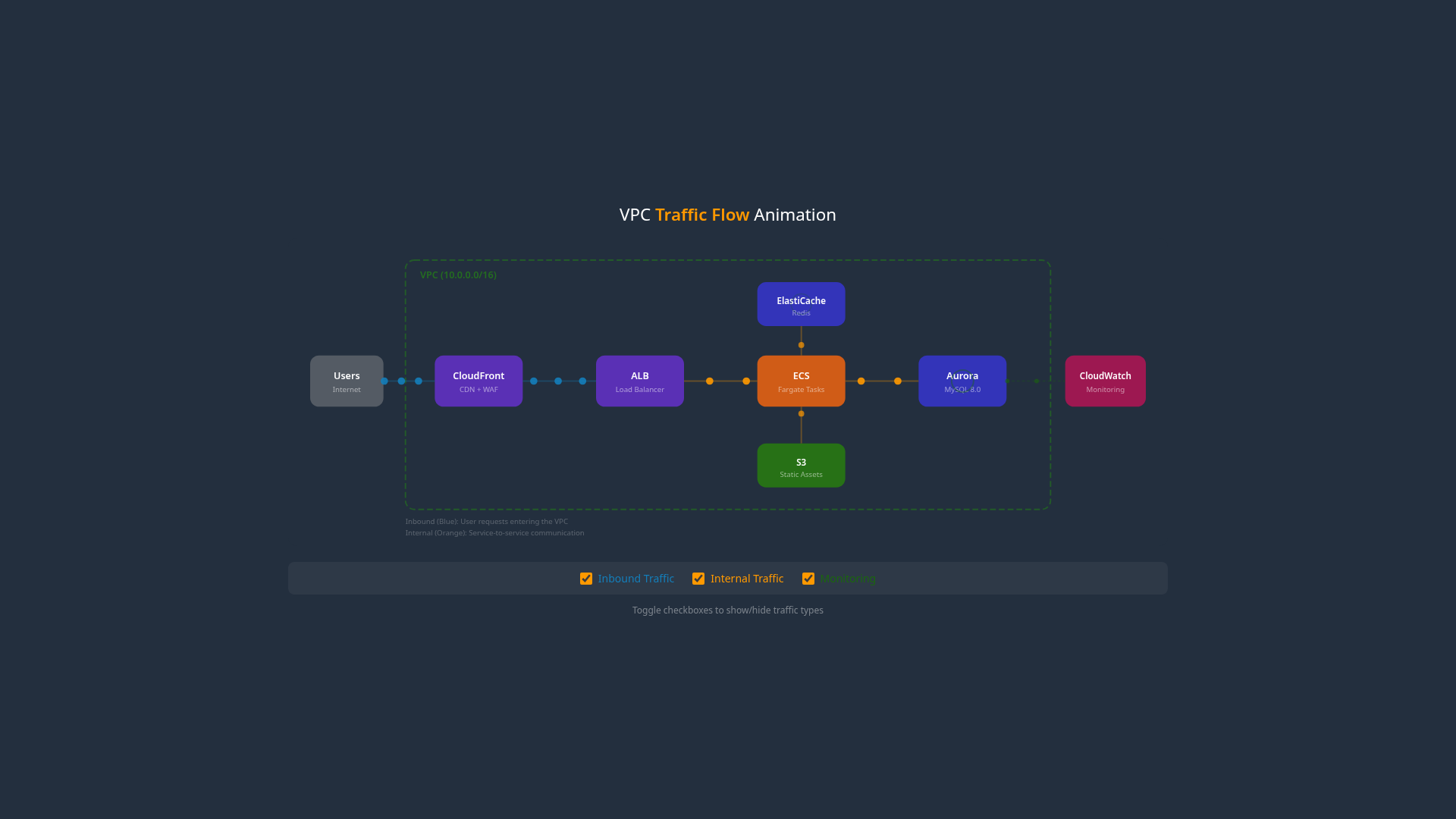
라이브 데모 — Traffic Flow

VPC Traffic Flow — SMIL 애니메이션 (범례 토글로 트래픽 필터링)새 탭에서 열기 ↗

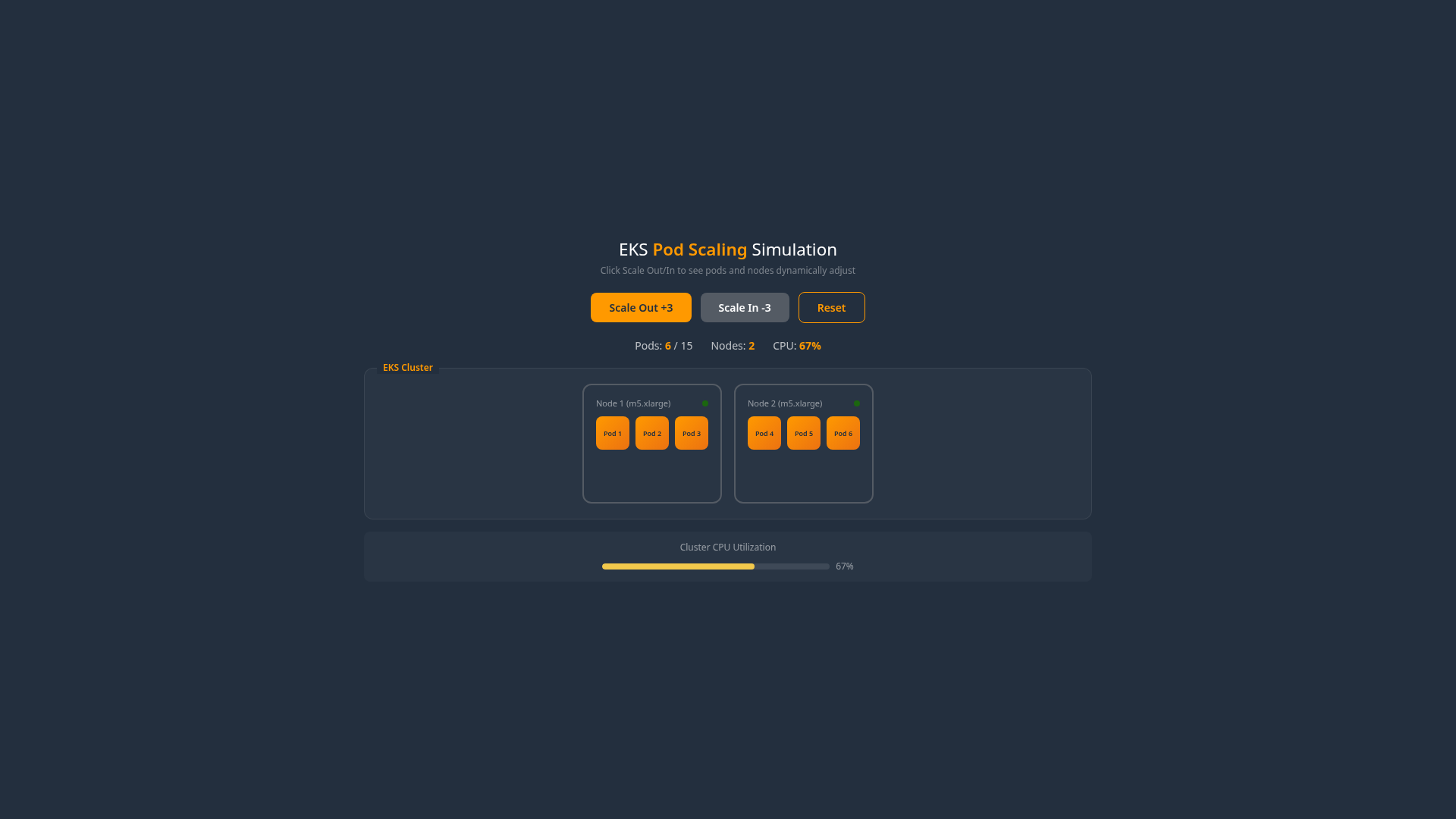
라이브 데모 — Pod Scaling Simulation

EKS Pod Scaling — Scale Out/In 버튼으로 Pod/Node 동적 변경새 탭에서 열기 ↗

생성 프롬프트

"VPC 트래픽 흐름 애니메이션을 만들어줘.
User → CloudFront → ALB → ECS → Aurora 경로를 보여주고,
Inbound(Blue)와 Internal(Orange) 트래픽을 색상으로 구분해줘.
범례 토글로 각 트래픽 타입을 켜고 끌 수 있게 해줘."

Traffic Flow 애니메이션

스크린샷

Traffic Flow Animation

HTML 코드 (발췌)

<!DOCTYPE html>
<html lang="en">
<head>
<meta charset="UTF-8">
<title>VPC Traffic Flow Animation</title>
<style>
body {
margin: 0;
background: #232F3E;
display: flex;
flex-direction: column;
align-items: center;
justify-content: center;
min-height: 100vh;
}
.container {
width: 100%;
max-width: 1200px;
aspect-ratio: 16/9;
}
.legend {
display: flex;
gap: 24px;
padding: 16px;
background: rgba(255,255,255,0.05);
border-radius: 8px;
margin-top: 16px;
}
.legend label {
display: flex;
align-items: center;
gap: 8px;
color: #fff;
font-family: Amazon Ember, sans-serif;
cursor: pointer;
}
</style>
</head>
<body>
<div class="container">
<svg viewBox="0 0 1200 400" xmlns="http://www.w3.org/2000/svg">
<!-- Background -->
<rect width="1200" height="400" fill="#232F3E"/>

<!-- Service Icons (simplified as boxes) -->
<g id="services">
<rect x="50" y="170" width="80" height="60" rx="8" fill="#545B64"/>
<text x="90" y="210" fill="#fff" text-anchor="middle" font-size="12">User</text>

<rect x="200" y="170" width="80" height="60" rx="8" fill="#945DF2"/>
<text x="240" y="210" fill="#fff" text-anchor="middle" font-size="12">CloudFront</text>

<rect x="400" y="170" width="80" height="60" rx="8" fill="#5A30B5"/>
<text x="440" y="210" fill="#fff" text-anchor="middle" font-size="12">ALB</text>

<rect x="600" y="170" width="80" height="60" rx="8" fill="#D05C17"/>
<text x="640" y="210" fill="#fff" text-anchor="middle" font-size="12">ECS</text>

<rect x="800" y="170" width="80" height="60" rx="8" fill="#3334B9"/>
<text x="840" y="210" fill="#fff" text-anchor="middle" font-size="12">Aurora</text>
</g>

<!-- Traffic Paths (invisible, for animation) -->
<path id="path-inbound-1" d="M 130,200 L 200,200" fill="none" stroke="none"/>
<path id="path-inbound-2" d="M 280,200 L 400,200" fill="none" stroke="none"/>
<path id="path-internal-1" d="M 480,200 L 600,200" fill="none" stroke="none"/>
<path id="path-internal-2" d="M 680,200 L 800,200" fill="none" stroke="none"/>

<!-- Inbound Traffic Dots (Blue) -->
<g data-group="inbound">
<!-- Path 1: User → CloudFront -->
<circle r="5" fill="#147EBA">
<animateMotion dur="2s" begin="0s" repeatCount="indefinite">
<mpath href="#path-inbound-1"/>
</animateMotion>
</circle>
<circle r="5" fill="#147EBA">
<animateMotion dur="2s" begin="0.66s" repeatCount="indefinite">
<mpath href="#path-inbound-1"/>
</animateMotion>
</circle>
<circle r="5" fill="#147EBA">
<animateMotion dur="2s" begin="1.33s" repeatCount="indefinite">
<mpath href="#path-inbound-1"/>
</animateMotion>
</circle>

<!-- Path 2: CloudFront → ALB -->
<circle r="5" fill="#147EBA">
<animateMotion dur="2s" begin="0.5s" repeatCount="indefinite">
<mpath href="#path-inbound-2"/>
</animateMotion>
</circle>
<circle r="5" fill="#147EBA">
<animateMotion dur="2s" begin="1.16s" repeatCount="indefinite">
<mpath href="#path-inbound-2"/>
</animateMotion>
</circle>
</g>

<!-- Internal Traffic Dots (Orange) -->
<g data-group="internal">
<!-- Path 3: ALB → ECS -->
<circle r="5" fill="#FF9900">
<animateMotion dur="2s" begin="0s" repeatCount="indefinite">
<mpath href="#path-internal-1"/>
</animateMotion>
</circle>
<circle r="5" fill="#FF9900">
<animateMotion dur="2s" begin="0.66s" repeatCount="indefinite">
<mpath href="#path-internal-1"/>
</animateMotion>
</circle>

<!-- Path 4: ECS → Aurora -->
<circle r="5" fill="#FF9900">
<animateMotion dur="2s" begin="0.3s" repeatCount="indefinite">
<mpath href="#path-internal-2"/>
</animateMotion>
</circle>
<circle r="5" fill="#FF9900">
<animateMotion dur="2s" begin="1s" repeatCount="indefinite">
<mpath href="#path-internal-2"/>
</animateMotion>
</circle>
</g>

<!-- Pulsing Status Indicators -->
<circle cx="840" cy="200" r="15" fill="none" stroke="#1B660F" stroke-width="2">
<animate attributeName="r" values="12;18;12" dur="2s" repeatCount="indefinite"/>
<animate attributeName="opacity" values="0.8;0.3;0.8" dur="2s" repeatCount="indefinite"/>
</circle>
</svg>
</div>

<!-- Interactive Legend -->
<div class="legend">
<label>
<input type="checkbox" checked onchange="toggleGroup('inbound')">
<span style="color:#147EBA">● Inbound Traffic</span>
</label>
<label>
<input type="checkbox" checked onchange="toggleGroup('internal')">
<span style="color:#FF9900">● Internal Traffic</span>
</label>
</div>

<script>
function toggleGroup(group) {
document.querySelectorAll(`[data-group="${group}"]`).forEach(el => {
el.style.display = el.style.display === 'none' ? '' : 'none';
});
}
</script>
</body>
</html>

Interactive Scaling 애니메이션

생성 프롬프트

"EKS 하이브리드 노드 버스팅 시뮬레이션을 만들어줘.
Scale Out 버튼을 누르면 Pod가 3개씩 추가되고, 새 노드가 생성되는 애니메이션.
Scale In 버튼으로 원래 상태로 돌아가게 해줘."

스크린샷

Pod Scaling Simulation

JavaScript State Machine (발췌)

const state = {
pods: 6,
nodes: 2,
animating: false,
minPods: 3,
maxPods: 12,
podsPerNode: 3
};

function handleScaleOut() {
if (state.animating || state.pods >= state.maxPods) return;
state.animating = true;
disableButtons();

// Animate new pods appearing one by one
const podsToAdd = 3;
for (let i = 0; i < podsToAdd; i++) {
setTimeout(() => {
state.pods++;
const pod = createPodElement(state.pods);
pod.classList.add('appearing');
document.getElementById('pod-container').appendChild(pod);
updateStatusDisplay();

// Remove animation class after transition
setTimeout(() => pod.classList.remove('appearing'), 300);
}, i * 200);
}

// Check if new node needed
setTimeout(() => {
if (state.pods > state.nodes * state.podsPerNode) {
state.nodes++;
const node = createNodeElement(state.nodes);
node.classList.add('appearing');
document.getElementById('node-container').appendChild(node);
setTimeout(() => node.classList.remove('appearing'), 500);
}
state.animating = false;
enableButtons();
}, podsToAdd * 200 + 500);
}

function handleScaleIn() {
if (state.animating || state.pods <= state.minPods) return;
state.animating = true;
disableButtons();

// Animate pods disappearing
const podsToRemove = 3;
const podElements = document.querySelectorAll('.pod');
const startIndex = podElements.length - podsToRemove;

for (let i = 0; i < podsToRemove; i++) {
setTimeout(() => {
const pod = podElements[startIndex + i];
if (pod) {
pod.classList.add('removing');
setTimeout(() => {
pod.remove();
state.pods--;
updateStatusDisplay();
}, 300);
}
}, i * 200);
}

// Check if node can be removed
setTimeout(() => {
if (state.pods <= (state.nodes - 1) * state.podsPerNode && state.nodes > 1) {
const nodes = document.querySelectorAll('.node');
const lastNode = nodes[nodes.length - 1];
lastNode.classList.add('removing');
setTimeout(() => {
lastNode.remove();
state.nodes--;
}, 500);
}
state.animating = false;
enableButtons();
}, podsToRemove * 200 + 500);
}

CSS Transitions

.pod {
width: 40px;
height: 40px;
background: linear-gradient(135deg, #FF9900 0%, #EC7211 100%);
border-radius: 8px;
transition: all 0.3s ease;
transform-origin: center;
}

.pod.appearing {
animation: popIn 0.3s ease forwards;
}

.pod.removing {
animation: popOut 0.3s ease forwards;
}

@keyframes popIn {
from {
opacity: 0;
transform: scale(0);
}
to {
opacity: 1;
transform: scale(1);
}
}

@keyframes popOut {
from {
opacity: 1;
transform: scale(1);
}
to {
opacity: 0;
transform: scale(0);
}
}

.node {
border: 2px solid #545B64;
border-radius: 12px;
padding: 16px;
transition: all 0.5s ease;
}

.node.appearing {
animation: slideIn 0.5s ease forwards;
}

.node.removing {
animation: slideOut 0.5s ease forwards;
}

@keyframes slideIn {
from {
opacity: 0;
transform: translateX(50px);
}
to {
opacity: 1;
transform: translateX(0);
}
}

SMIL vs Interactive 선택 가이드

시나리오SMIL 사용Interactive (JS) 사용
연속 루프 애니메이션Yes-
범례 토글 외 인터랙션 없음Yes-
정상 상태 트래픽 흐름 표시Yes-
사용자 클릭으로 상태 변경-Yes
요소 동적 생성/삭제-Yes
다단계 스토리텔링-Yes
전후 상태 비교-Yes

색상 표준

Traffic TypeColorHexUsage
InboundBlue#147EBAExternal traffic entering AWS
OutboundRed#DD344CTraffic leaving AWS
AWS InternalOrange#FF9900Traffic between AWS services
Success/ActiveGreen#1B660FHealthy status indicators
WarningYellow#F2C94CWarning status
BackgroundSquid Ink#232F3EDiagram background

주요 포인트

  1. SMIL for Continuous Flow: 트래픽 흐름은 <animateMotion>으로 구현
  2. JS for State Changes: 스케일링은 JavaScript 상태 머신으로 구현
  3. Legend Toggle: data-group 속성으로 애니메이션 그룹 제어
  4. Responsive Design: viewBox와 aspect-ratio로 반응형 지원
  5. Smooth Transitions: CSS transitions/animations로 부드러운 효과